Mandato — User Guide
Welcome to Mandato, the legal CRM built for Spanish law firms. This guide is written for lawyers and firm staff — no technical knowledge required. It walks you through everything you'll do day to day, with pictures of each screen.
A note on the screenshots: every picture in this guide comes from the built-in demo workspace (the "Frank & Partners" sample firm). What you see in your own account will look the same, but with your firm's real data.
👔 Are you a firm director or administrator? Most day-to-day features are here. For invitations, integration set-up, branding, backups and billing, see the Admin Guide and API Keys Setup.
Contents
- Getting Started
- Managing Clients
- Working with Cases
- Tasks & Time Tracking
- Documents
- Communications
- Calendar & Deadlines
- Invoicing & Finance
- AI Features
- Spanish Integrations
- Digital Certificates
- Powers of Attorney
- Leads & Intake
- Marketing
- Reports & Analytics
- Client Portal
- Settings
- Keyboard Shortcuts
- Troubleshooting
1. Getting Started
Logging in
When you open Mandato you'll see the welcome screen.
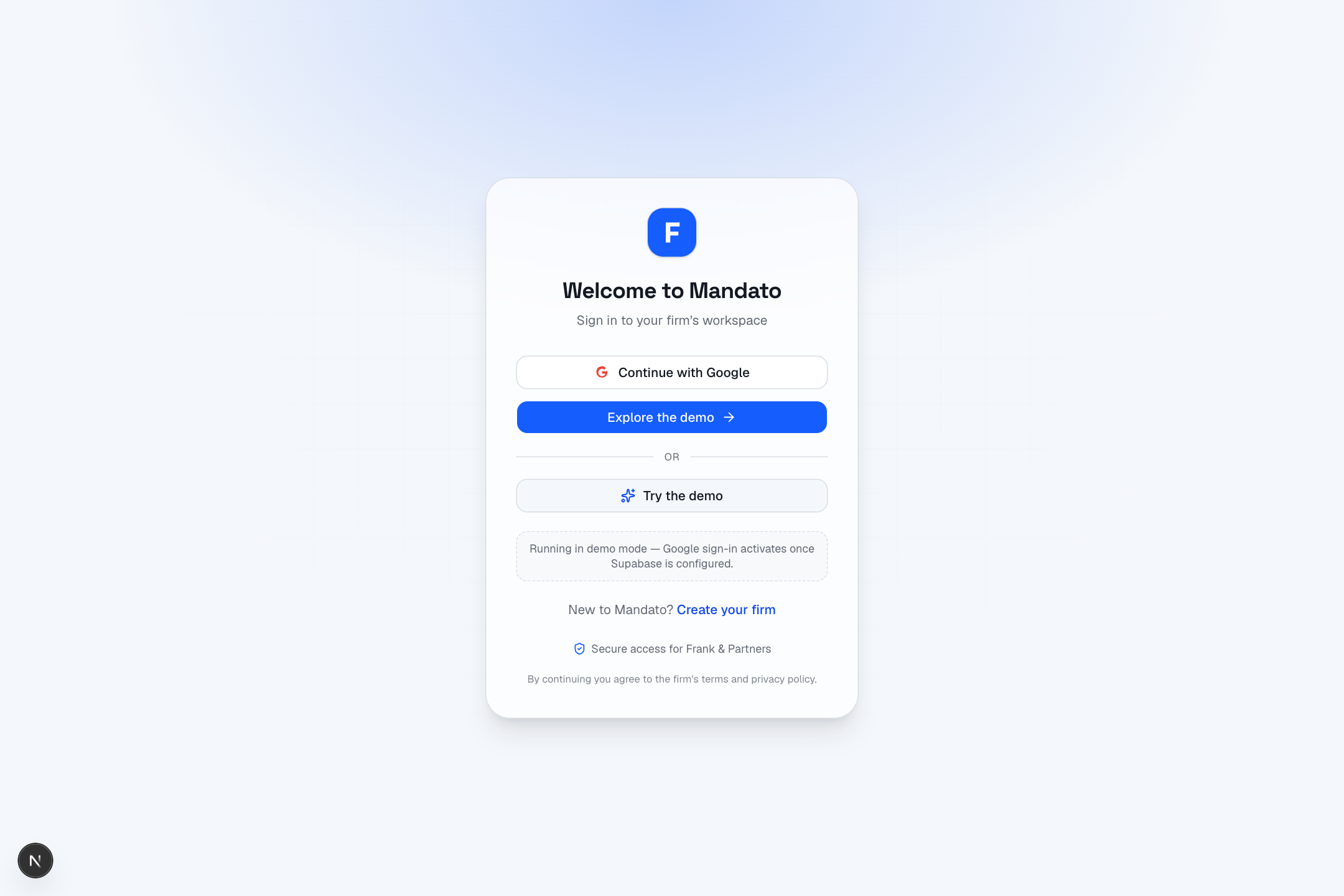
You have three ways in:
- Continue with Google — sign in with your firm's Google (Gmail / Workspace) account. This is the normal way to log in once your firm is set up.
- Explore the demo / Try the demo — opens a sample firm filled with example clients and cases so you can look around safely. Nothing you do in the demo is saved.
- Create your firm — if your firm is brand new to Mandato, this starts the set-up wizard.
If you can't log in, your firm administrator can re-send your invitation from Settings → Team & Roles.
The dashboard — your home base
After logging in you land on the Dashboard. This is your daily snapshot of the whole firm.
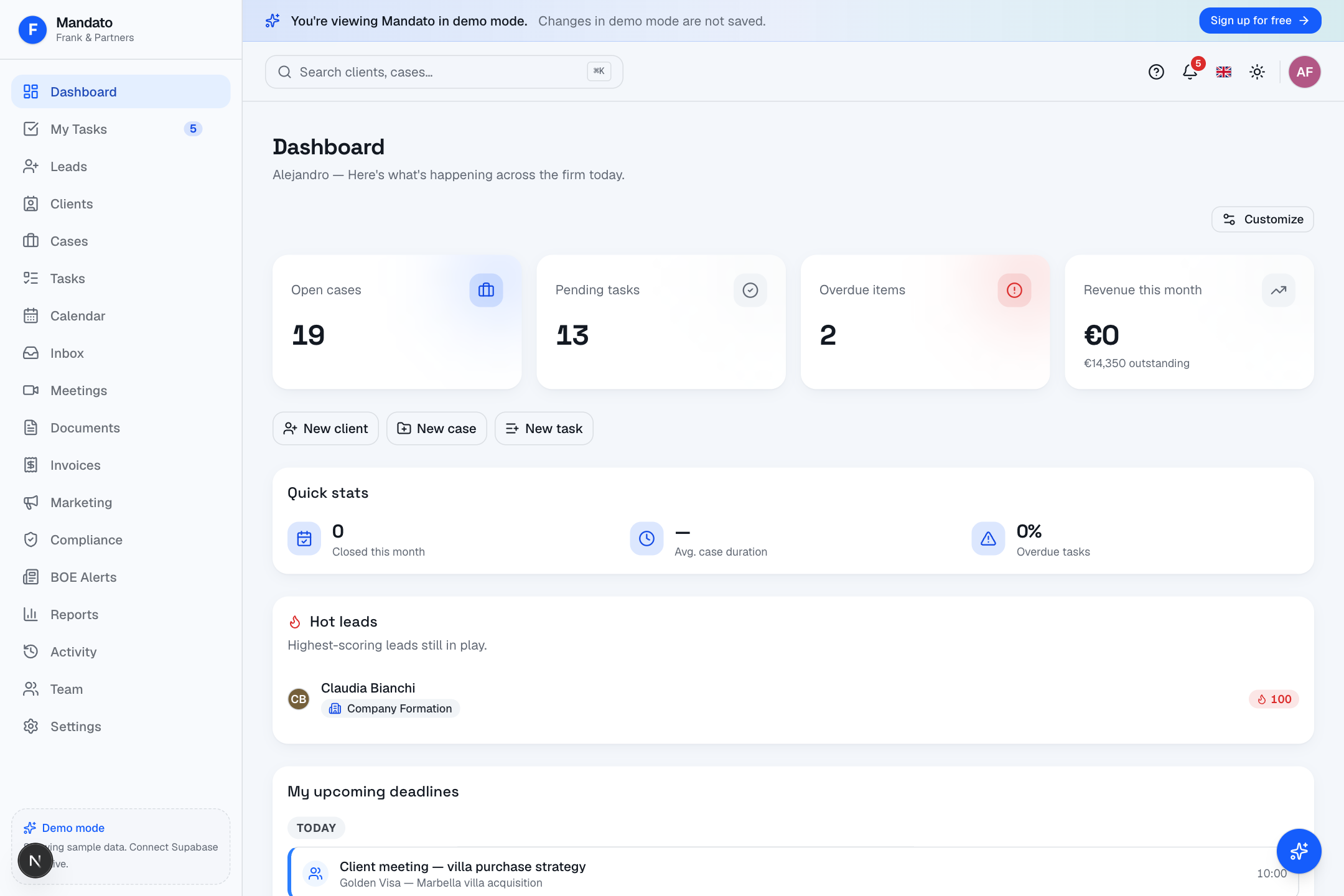
From the top, here's what you're looking at:
- Stat cards — at a glance: how many open cases you have, pending tasks, overdue items, and revenue this month (with the amount still outstanding).
- Quick action buttons — New client, New case, New task — start the most common jobs in one click.
- Quick stats — cases closed this month, average case duration, and the share of tasks that are overdue.
- Hot leads — the most promising potential clients still in play.
- Upcoming deadlines & tasks — what's due over the next few days.
Click Customize (top right) to hide or reorder the panels so the dashboard shows what matters most to you. Your layout is remembered for next time.
Finding your way around
On a computer, the sidebar runs down the left of every screen. It's your main menu:
| Menu item | What it's for |
|---|---|
| Dashboard | Your home overview |
| My Tasks | Your personal to-do list |
| Leads | Potential clients who haven't signed yet |
| Clients | Everyone your firm acts for |
| Cases | Active and past legal matters |
| Tasks | Every task across the firm |
| Calendar | Deadlines, meetings and court dates |
| Inbox | Email and WhatsApp in one place |
| Meetings | Recorded calls with transcripts and summaries |
| Documents | Letters, contracts and templates |
| Contracts | AI contract drafting and review |
| Legal Research | Search Spanish case law (CENDOJ) |
| Invoices | Billing across all clients |
| Marketing | Email campaigns and client segments |
| Compliance | Sanctions / PEP / anti-money-laundering screening |
| Risk | Firm-wide client risk overview |
| Certificates | Digital certificate (FNMT / DNIe) vault |
| BOE Alerts | Official-gazette alerts about your clients |
| Reports / Analytics | Revenue, workload, pipeline and benchmarks |
| Satisfaction | Client NPS scores and feedback |
| Activity | A log of everything that's happened |
| Team | Your colleagues and their workloads |
| Settings | Firm profile, integrations and preferences |
At the very top of every page is the search bar (search clients, cases, tasks and documents), the notification bell, a language switch, a light / dark mode toggle, and your profile menu.
On your phone
Mandato is built mobile-first. On a phone the sidebar is replaced by a bottom tab bar with your most-used sections, plus a More button for everything else.
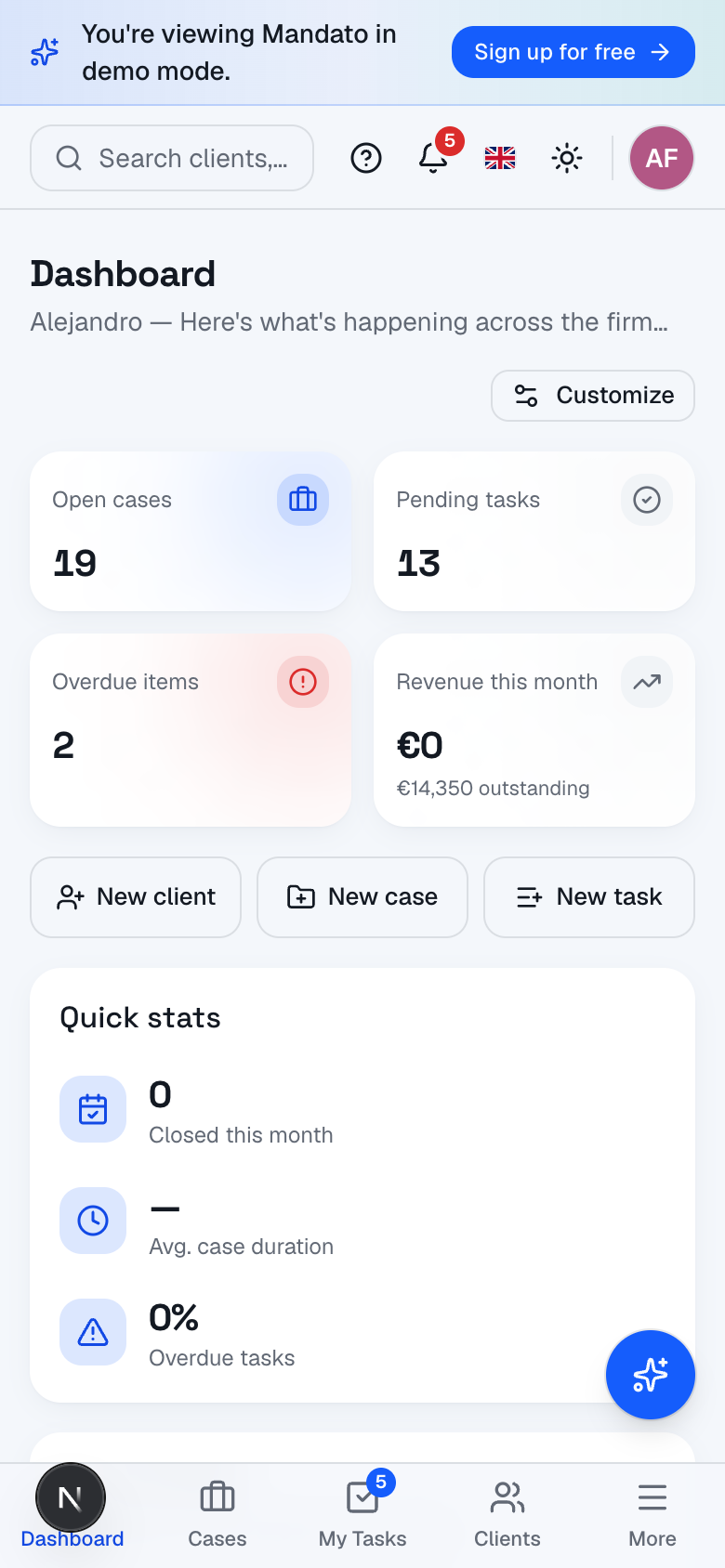
💡 Install it like an app. Mandato is a Progressive Web App (PWA). In your browser's menu choose Add to Home Screen (or Install) and Mandato gets its own icon and works even when you briefly lose signal — actions queue and sync when you're back online.
2. Managing Clients
The Clients section is the heart of your firm — every person and company you act for lives here.
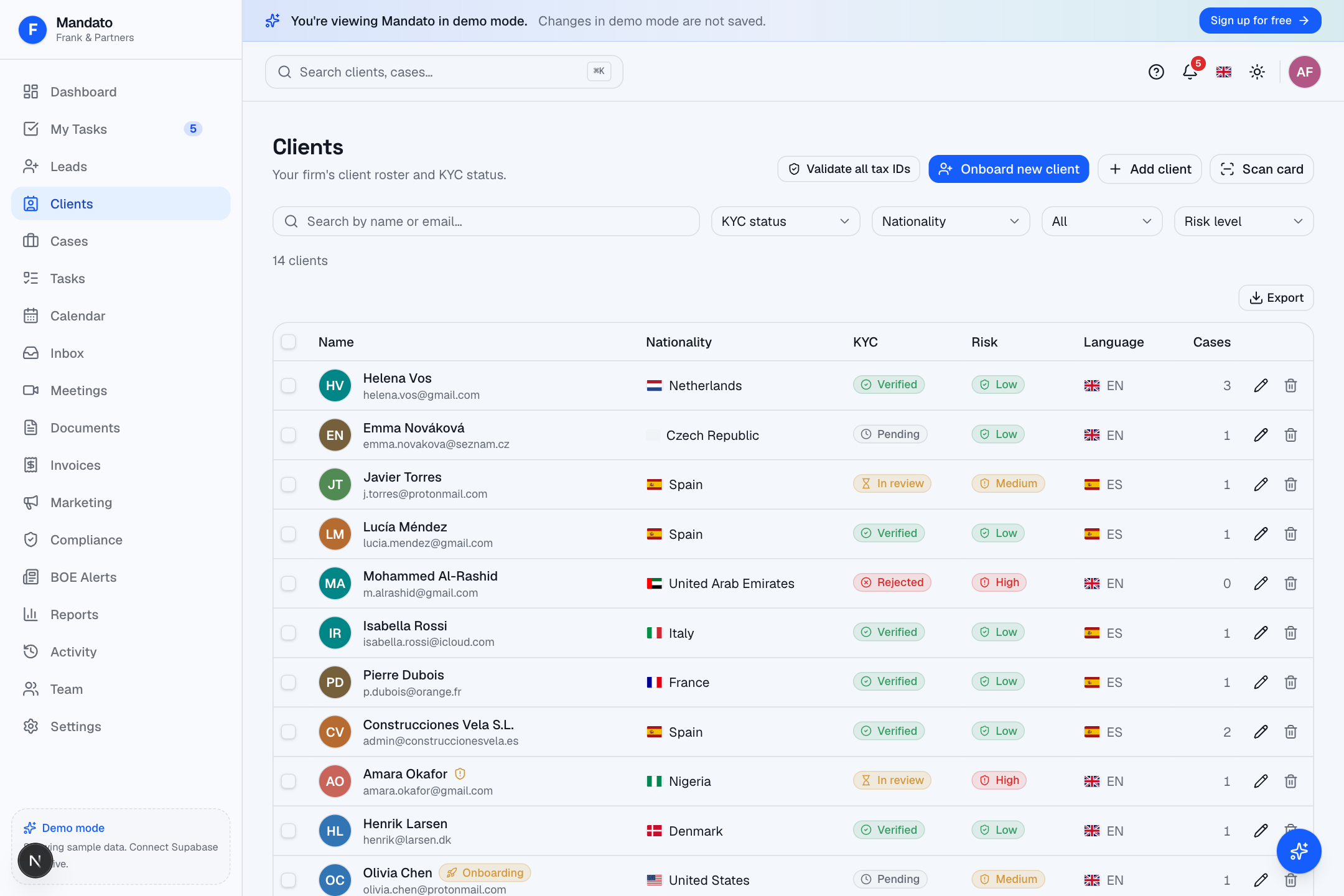
The client list shows each client's name, how many cases they have, their risk level, KYC status and nationality. Use the filters and search bar at the top to narrow the list (by name, KYC status, nationality, language or risk).
Adding a new client
Click + New client (top right). A form opens where you fill in the client's details.
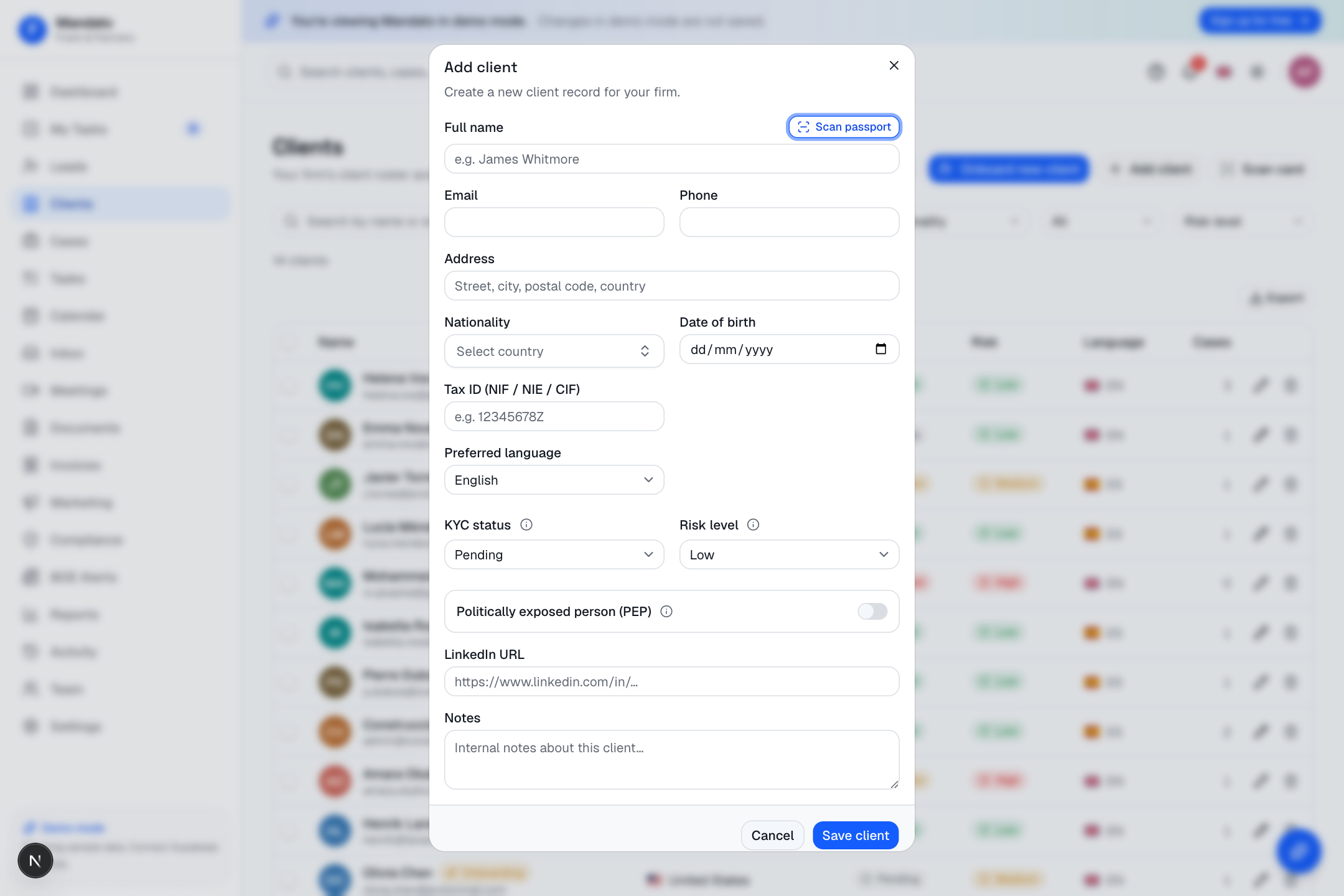
Fill in what you know:
- Full name, email, phone and address
- Nationality (shown with a flag) and date of birth
- Tax ID — the Spanish NIF, NIE or CIF. Mandato can validate it for you.
- Preferred language — so letters and portal go out in the client's language
- KYC status and Risk level — for your anti-money-laundering records
- Politically exposed person (PEP) toggle
- LinkedIn and free-text Notes
Click Save client when you're done.
💡 Address autocomplete. If your firm has connected Google Maps, the address field suggests real addresses as you type and fills them in consistently.
Scanning a passport, ID or business card
Instead of typing everything by hand, click ⤢ Scan passport at the top of the form. Take a photo of the client's passport, national ID or business card and Mandato reads the name, nationality, document number and date of birth (or the company, role, email and phone from a card), then fills the form in for you. Always check the details before saving.
The client record (Client 360)
Click any client to open their full record — the Client 360 view that pulls everything about them into one place.
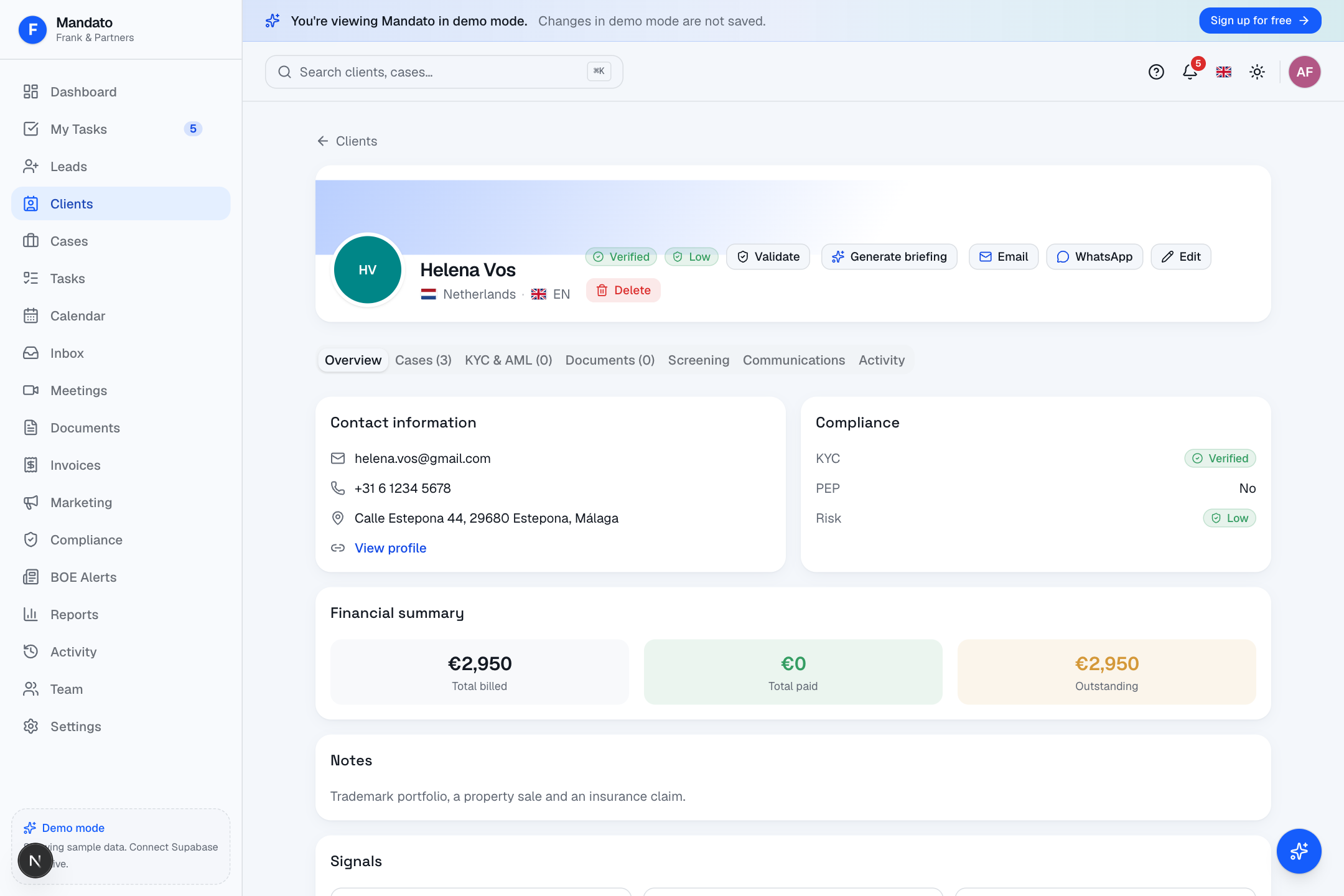
At the top you'll find quick-action buttons — Validate (tax ID), Generate briefing (an AI summary of the client), Email, WhatsApp and Edit — plus badges showing the client's verification, risk and language.
The tabs below organise everything about the client:
- Overview — contact information, compliance summary (KYC / PEP / Risk), financial summary (total billed, paid, outstanding), notes, the Powers of Attorney panel and AI Recommended services (cross-sell).
- Cases — every matter you're handling for this client.
- KYC & AML — identity documents you've collected, with expiry tracking.
- Documents — letters and contracts linked to this client.
- Screening — sanctions and PEP screening results, with a Re-screen button.
- Communications — the full email / WhatsApp / call history.
- Activity — an audit trail of every change.
KYC onboarding
When you take on a new client you can run the onboarding wizard, which walks you through KYC step by step: personal or company details → address and contact → collecting identity documents (passport, ID, proof of address) → an automatic risk assessment → and finally opening their first case. Everything is saved to the client's record so your firm stays compliant with Ley 10/2010.
Risk level, PEP and conflicts
- Risk level (low / medium / high) drives your due-diligence level (simplified, standard or enhanced). You can set it by hand or let onboarding and screening suggest it.
- PEP flags a politically exposed person, who always needs enhanced checks.
- The conflict-of-interest checker warns you when a new client shares an address or relationship with an existing one, so you can clear conflicts before acting.
Editing and deleting a client
Open the client and click Edit to change any detail. To remove a client, use the ⋯ / Delete action on their record — Mandato asks you to confirm, and the deletion is written to the Activity log. Clients who still have open cases can't be deleted until those are closed or reassigned.
💡 Leads vs. Clients. Someone who has enquired but not yet signed lives in Leads. When they become a client, convert them and their details carry over — no re-typing. See Leads & Intake.
3. Working with Cases
In Mandato, a legal matter is called a Case. Open the Cases section to see your firm's whole caseload.
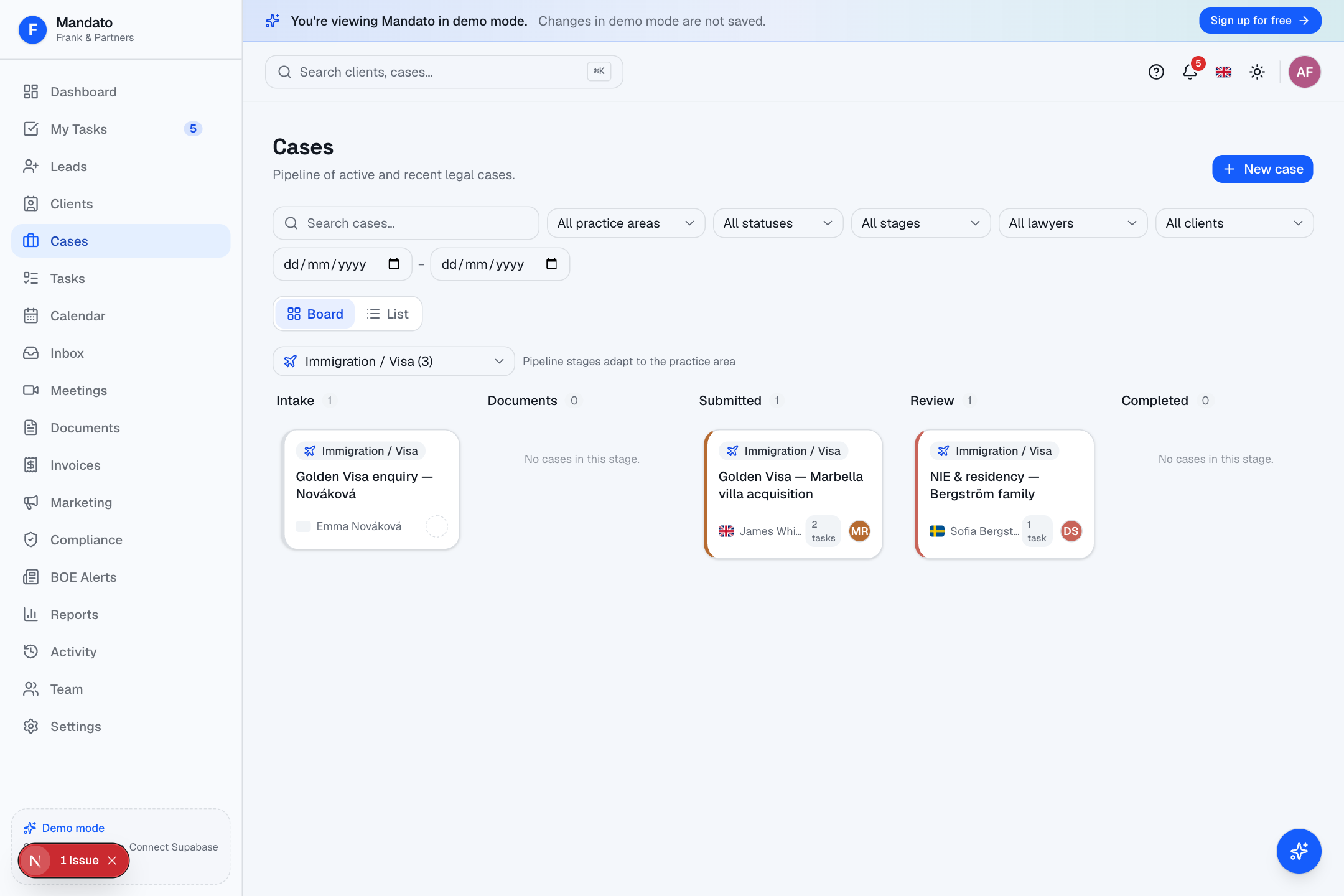
The Kanban board
By default cases appear on a board — columns that represent the stages a case moves through (for example Intake → Documents → Submitted → Review → Completed). Each card is one case, showing the client, the case title, its practice area and the responsible lawyer.
To move a case forward, drag its card into the next column. You can also switch to a plain List view with the toggle near the top, and filter by practice area, status, stage, lawyer, client or date.
The stages you see change depending on the practice area — a property purchase has different steps than an immigration matter. Your firm can edit these step lists in Settings → Playbooks (see the Admin Guide).
Creating a case
Click + New case, then choose:
- the client the case is for,
- the practice area — Mandato offers 15: property purchase, property sale, post-completion / cambio de titularidad, company formation, tax advisory, immigration / visa, family law, inheritance & probate, employment, debt collection, criminal defence, administrative law, insurance claims, intellectual property, and general representation,
- a title, the responsible lawyer, and a short description.
The correct stages and a starter task checklist (the practice area's playbook) are created automatically.
Recurring cases
For periodic or compliance matters (monthly bookkeeping, quarterly VAT records, annual accounts) tick Recurring when creating the case and choose a cadence (monthly / quarterly / annually). Mandato re-opens a fresh case on schedule so nothing is forgotten.
Inside a case
Click any case to open it.
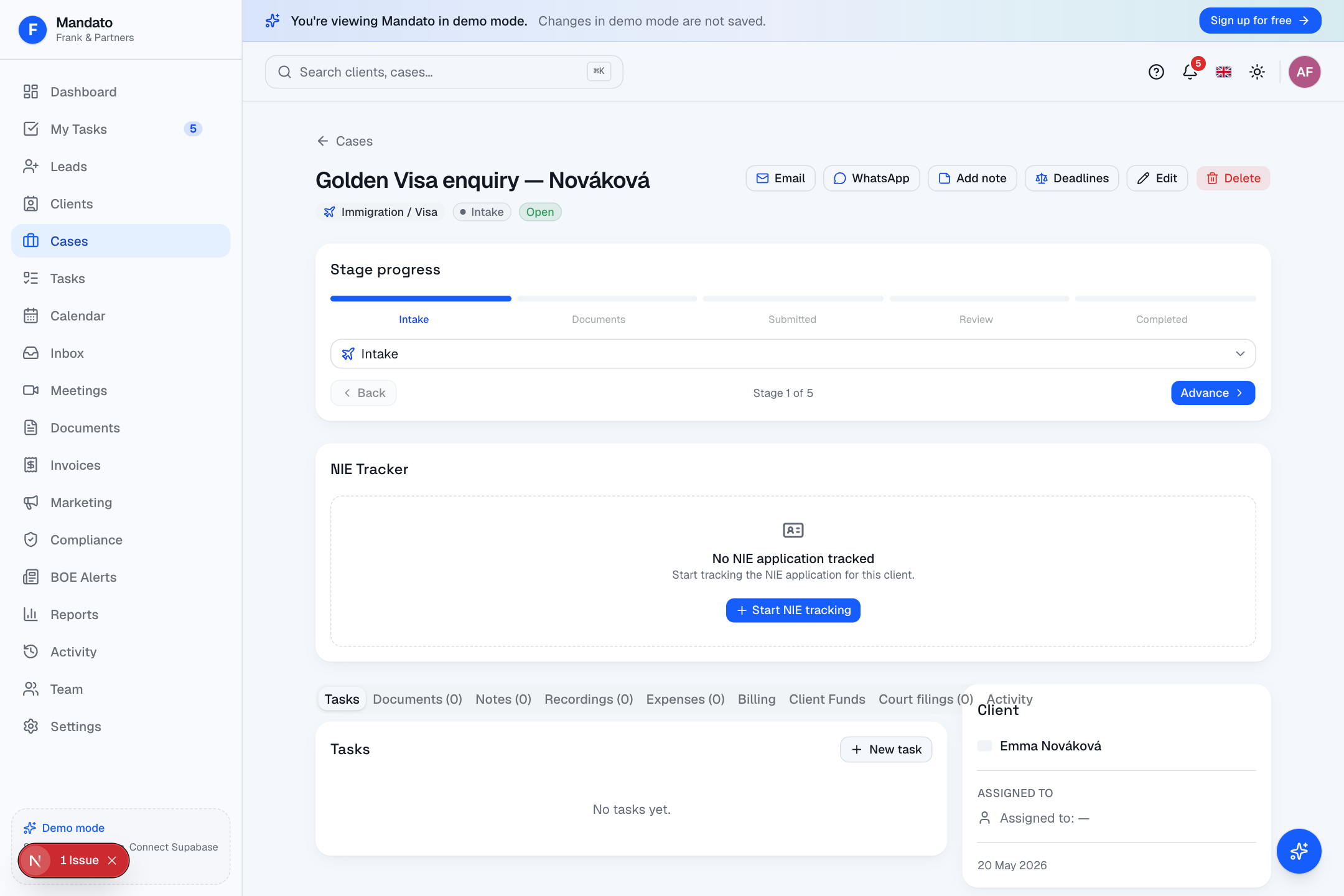
At the top is the stage progress bar — a visual of where the case stands. Use Advance to push the case to its next stage. The action buttons (Email, WhatsApp, Add note, Deadlines, Edit) let you act without leaving the page.
The tabs cover everything about the matter:
- Tasks — the case's to-do list, with time tracking.
- Documents — contracts and letters for this case.
- Notes — internal, timestamped notes (pin important ones to the top).
- Recordings — recorded meetings, transcripts and summaries.
- Voice notes — dictate a note and let AI write it up (see AI Features).
- Expenses — costs you've logged against the case.
- Billing — time entries and the billing summary (see Invoicing & Finance).
- Client Funds — the trust-account ledger (deposits, money applied to fees, refunds and balance).
- Court — court case tracking, events and filings.
- Activity — the case's audit trail.
On property, company and immigration cases you'll also see Spanish government widgets and, on conveyancing matters, the Property Purchase Copilot (see Spanish Integrations and AI Features).
4. Tasks & Time Tracking
Mandato has two task views: Tasks (everything across the firm) and My Tasks (just yours).
Tasks — the firm-wide view
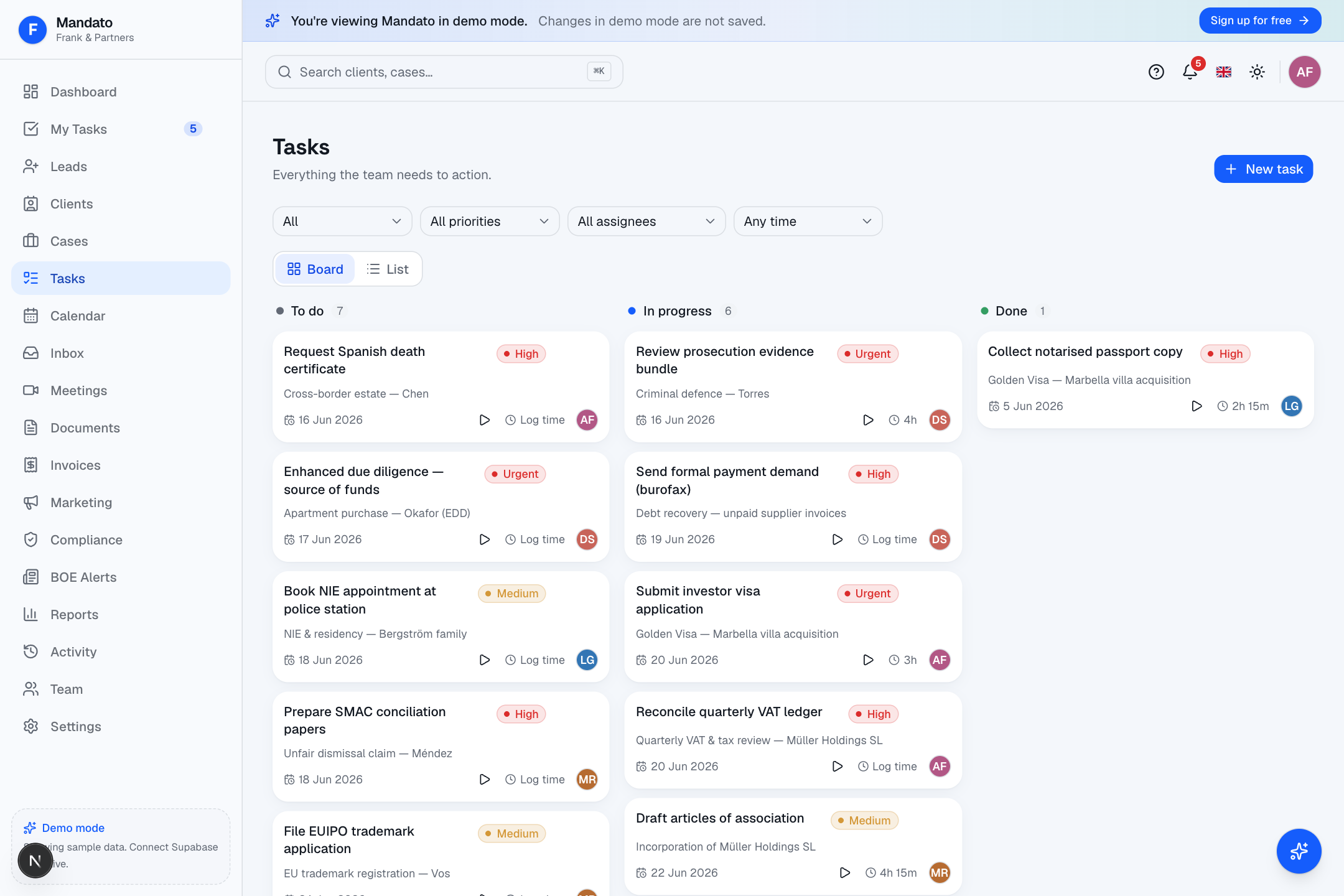
The Tasks page shows every task in the firm, grouped by status (to-do, in progress, done). Filter by who it's assigned to, priority, due date or case. Each task can be linked to a case, given a due date and a priority, and assigned to a colleague.
To create one, click + New task and fill in the title, the case it belongs to, who's responsible, the due date and priority.
My Tasks — your personal list
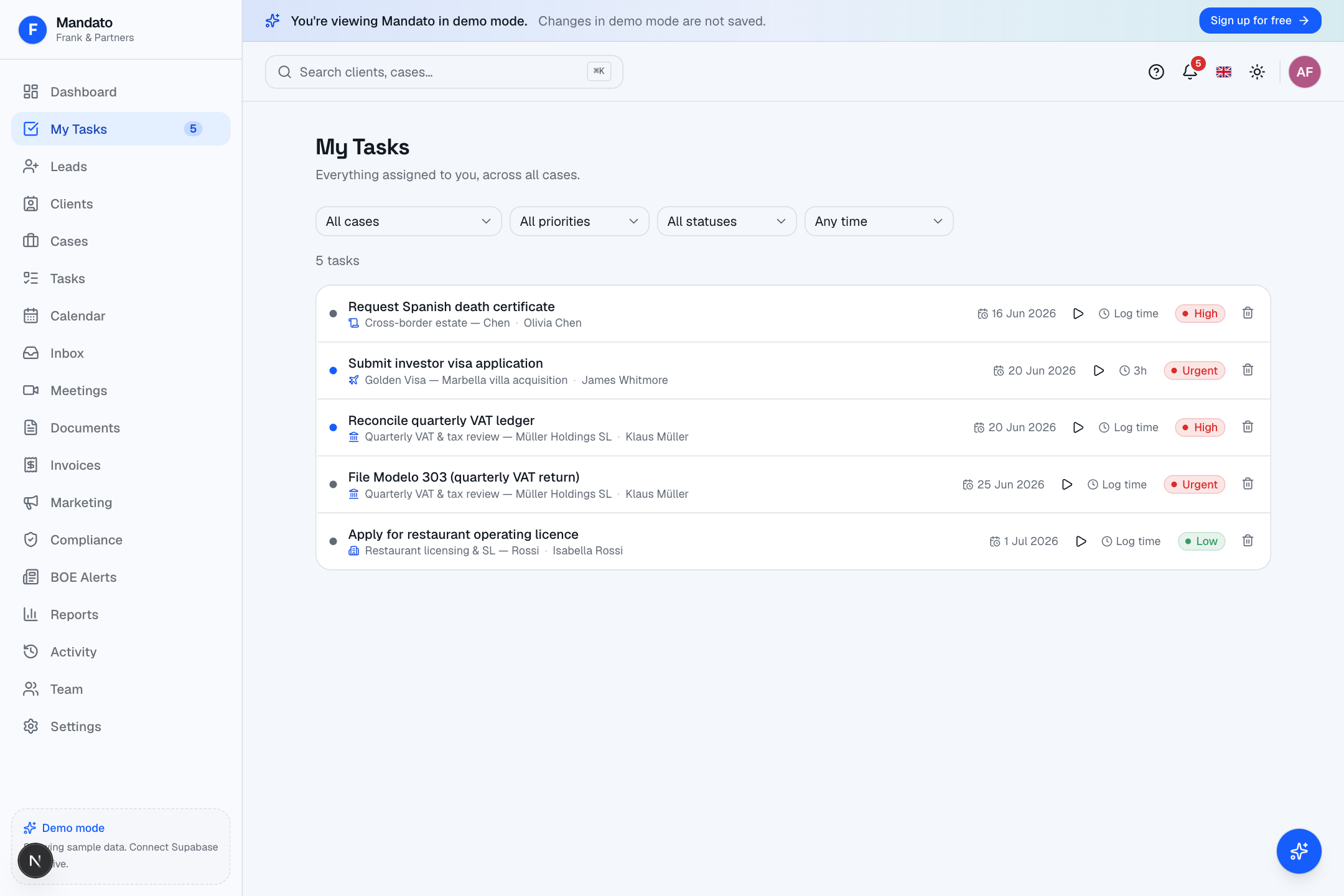
My Tasks shows only the tasks assigned to you, with quick filters for today, overdue and upcoming — your daily checklist.
Time tracking
If your firm has time tracking switched on, each task has a place to log time: enter the minutes worked, a short note and the date. These entries roll up into the case's Billing tab automatically, so the billable total is always up to date.
Your firm can also enable automatic time tracking, which quietly logs the time you spend on a case page — handy if you forget to start a timer. Both options are controlled in Settings → Time Tracking.
💡 Manual entry. You don't need a running timer — open the task, click Log time, type the minutes and date, and save. Perfect for catching up at the end of the day.
Deadlines
A task marked as a deadline (for example a court date) is highlighted and appears in red on your Calendar, so procedural dates never slip.
5. Documents
The Documents section is where you draft, store, sign and send everything in writing.
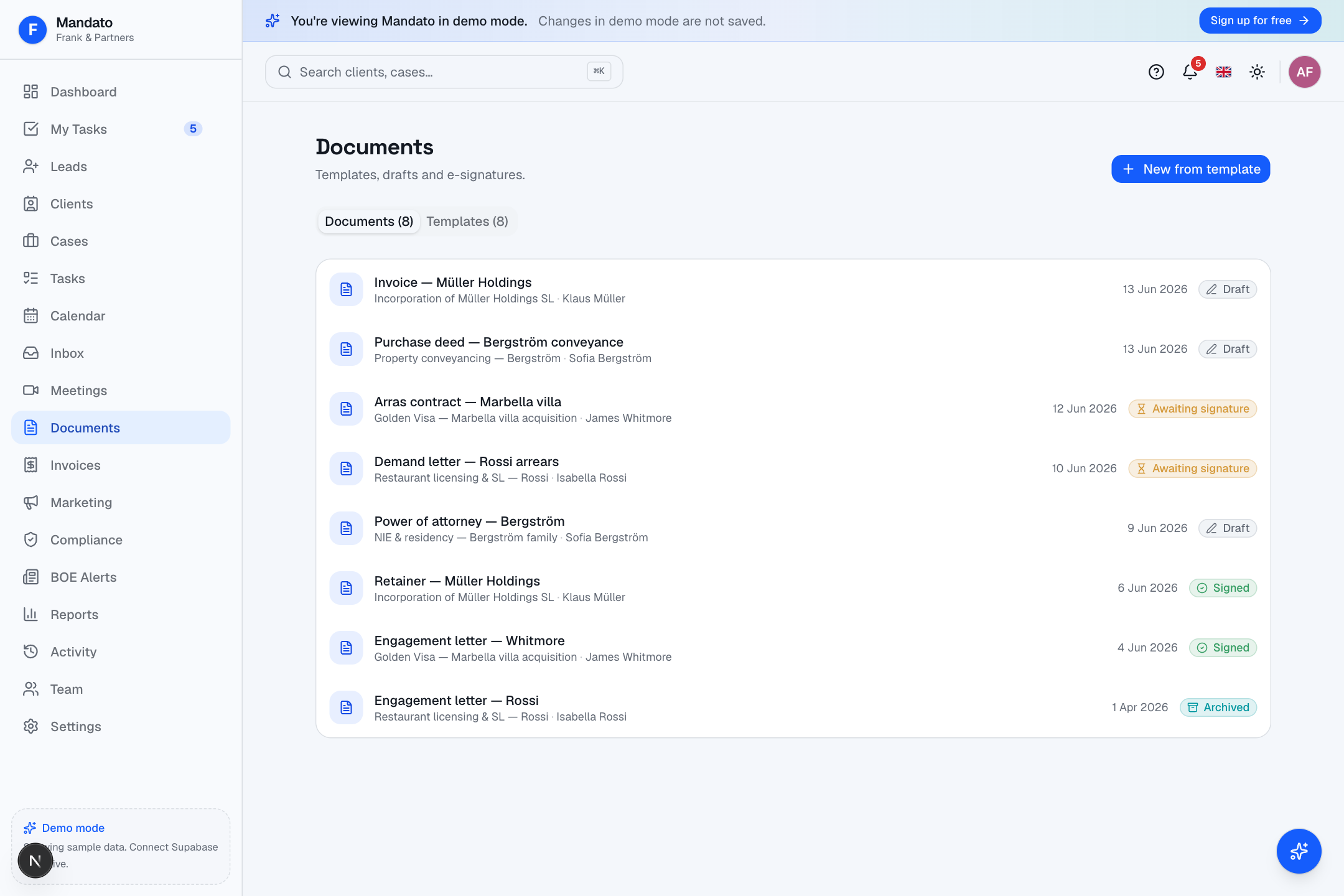
Documents are organised into My Documents (everything you've created or uploaded, filterable by status — draft, pending signature, signed, archived) and Templates (a ready-made library of common legal documents: engagement letters, powers of attorney, arras contracts, demand letters, NDAs and more).
Creating a document from a template
Click + New (or pick a template), choose the case it relates to, and
Mandato opens the document editor. Templates use merge fields like
{{client.name}}, {{lawyer.name}} and {{case.title}} that fill themselves in
from the case — no copy-pasting names and addresses.
The document workspace
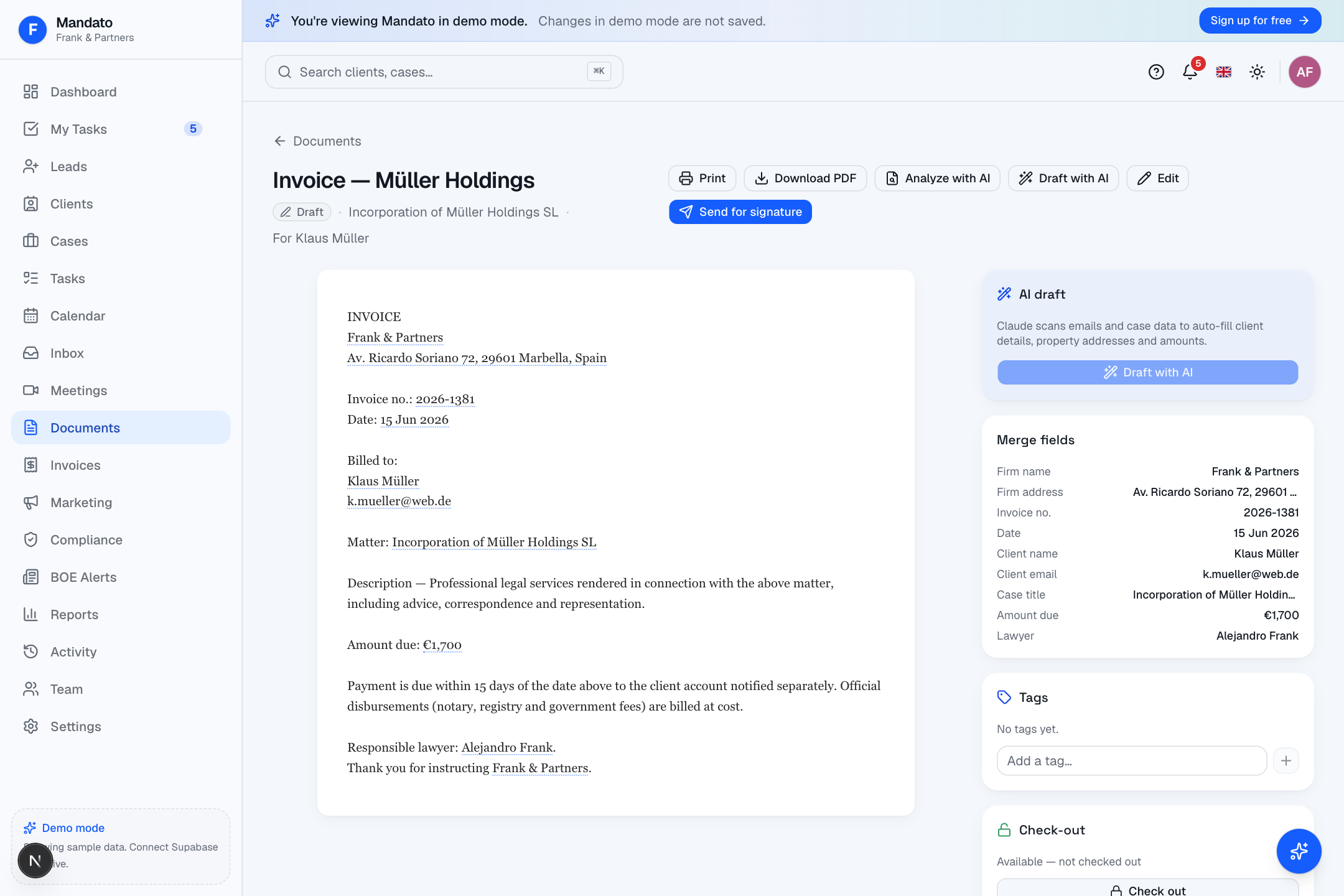
Inside a document you can:
- Edit the text directly.
- Draft with AI — let Mandato fill in missing details from the case context.
- See and fill the Merge fields panel on the right.
- Translate the document to another language (ES ⇄ EN and more) with one click — useful for cross-border clients.
- Add Tags to organise documents.
- Download PDF (with your firm's branding) or Print.
- Review the version history — every change is kept, so you can see what changed and when, and restore an earlier version if needed.
Previewing files
For uploaded files, Mandato previews PDFs, images and text in the browser, so you don't have to download a document just to glance at it.
Sending for e-signature
Click Send for signature. Mandato creates a secure link for the client (it appears in their Client Portal). The client can draw or type their signature; Mandato records the signature, the signer's name and email, the date and time, the IP address and geolocation, and the signing method — a full audit trail. You'll see the status change from pending signature to signed automatically.
6. Communications
The Inbox brings every conversation with a client — email, WhatsApp and call notes — into one place.
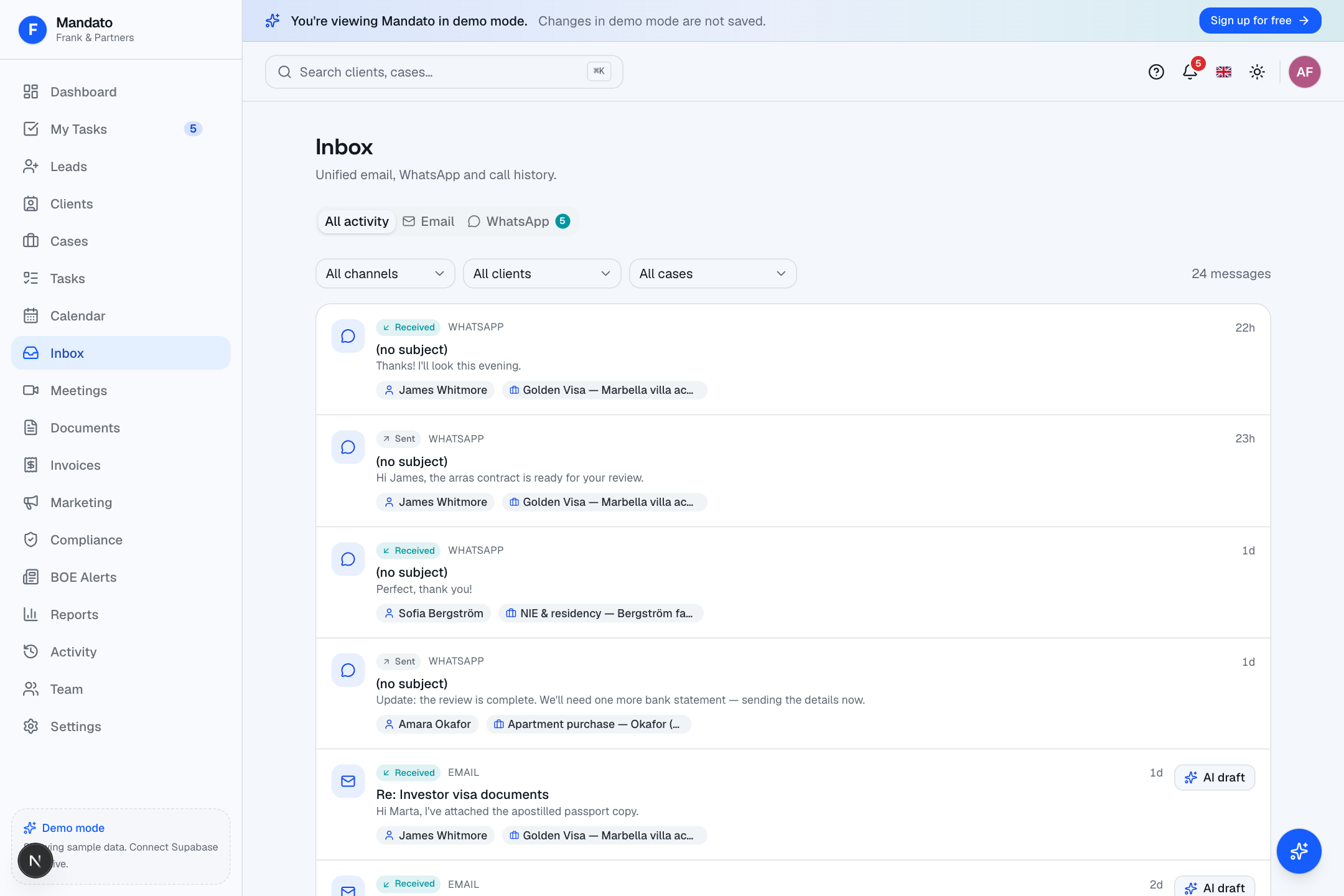
Use the tabs to view All activity, just Email, or just WhatsApp, and filter by channel, client or case. Each message shows which channel it came from and which case it belongs to. Search across every message to find a past conversation instantly.
AI draft
When you reply, click AI draft (or Draft with AI) to get a suggested response written with the full case context — you can edit it before sending. Inbound email is also triaged automatically: each message gets a priority (urgent / normal / low) and a suggested action, so the important things rise to the top.
Email
Connect your own Gmail or Outlook mailbox so you can send and receive from inside Mandato. Your firm can also use a system inbox (a BCC / auto-forward address) so that a copy of every client email is kept on file — this is the recommended default for Ley 10/2010 record-keeping and survives staff changes. Both are set up in Settings → Integrations → Email.
WhatsApp
WhatsApp uses a firm-owned number (not your personal one), so messages stay with the firm. You can send and receive, use pre-approved message templates, and see delivery and read status. Set it up in Settings → Integrations → WhatsApp.
The unified timeline
Every client and every case has its own communications timeline (under their Communications tab), so you always have the full history of who said what, when — whatever channel it came through.
7. Calendar & Deadlines
The Calendar shows deadlines, meetings and court dates across the whole firm.
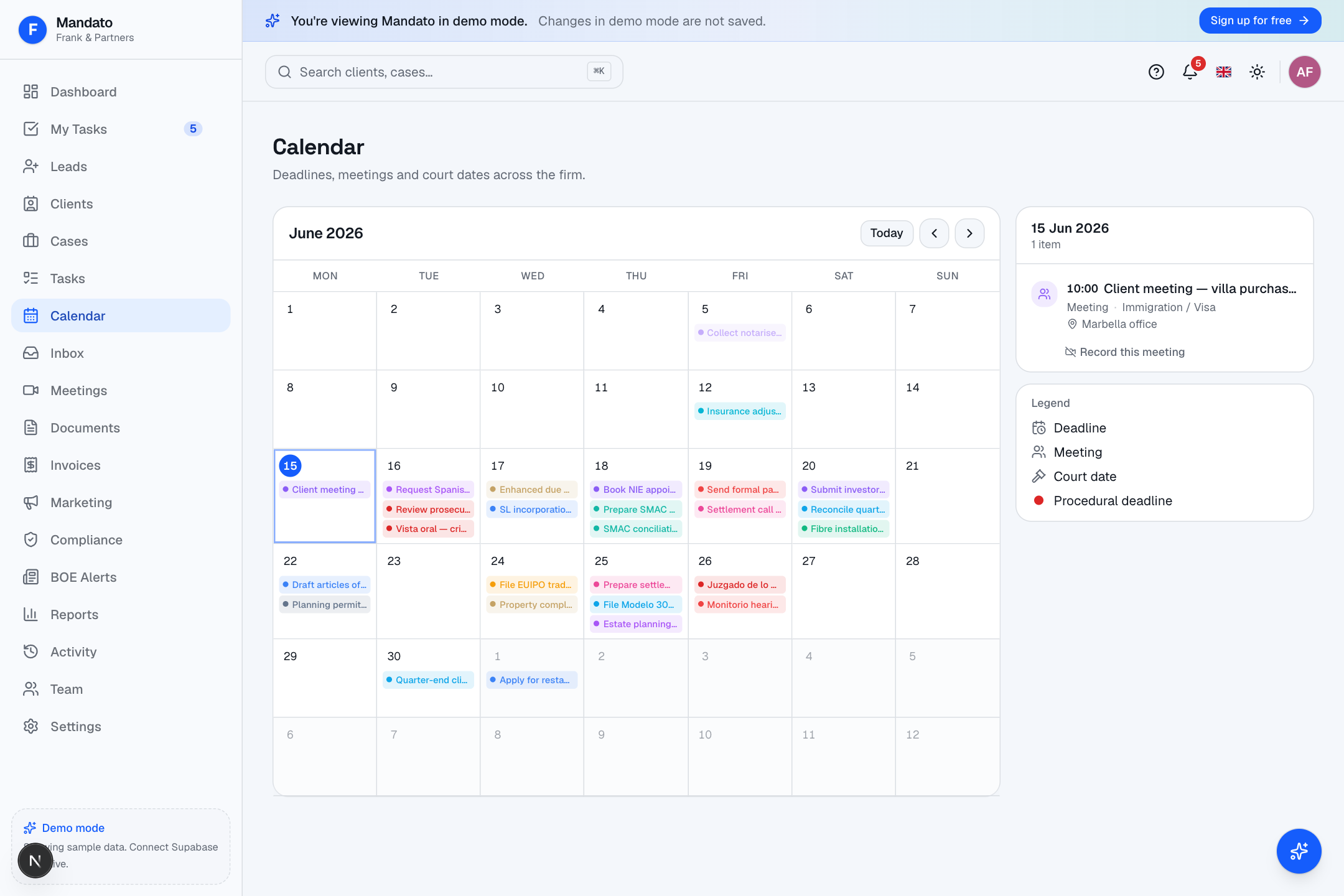
Switch between month, week and day views. Events are colour-coded and a legend explains the markers — deadlines, meetings, court dates and procedural deadlines (shown in red so they stand out). Click a day to see its events in the side panel, where you can also choose to record a meeting.
Procedural deadlines & the deadline calculator
On litigation and procedural cases you can ask Mandato to generate the deadlines for the matter: pick the jurisdiction and the AI lays out the procedural roadmap — appeal windows, hearing dates, filing limits — under the relevant Spanish procedural law (LEC, LRJS, LJCA, LECrim). Each deadline becomes a red-flagged task on the calendar. Court next hearings also sync in automatically from the court tracker.
Google Calendar sync
Connect your Google Calendar in Settings → Integrations → Google Calendar to see your existing appointments alongside Mandato's deadlines, and to push Mandato events back to Google. It's a two-way sync, so you only need to look in one place.
Recording meetings
When a meeting is set to be recorded, a Mandato assistant joins the call, captures the audio and transcript, and afterwards produces a summary and a list of action items — which can become tasks automatically. Recordings, transcripts and summaries appear under the case's Recordings tab and in the Meetings section.
8. Invoicing & Finance
The Invoices section tracks billing across all your clients and cases.
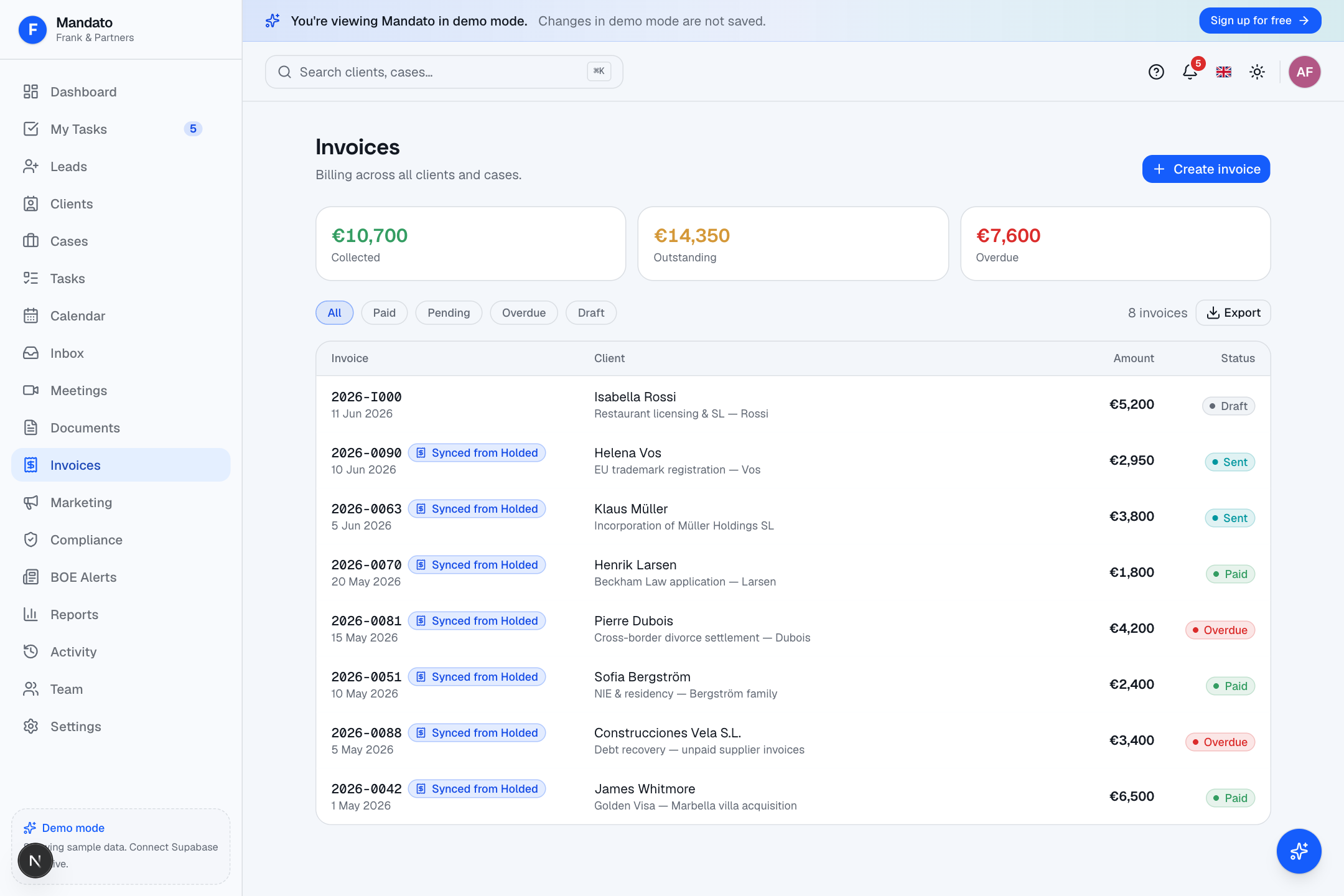
The summary cards at the top show how much you've collected, what's outstanding and what's overdue. The list shows every invoice with its client, case, amount and status (draft, sent, paid, overdue). Use the tabs and the Export button to filter and download.
How billing works in Mandato
Important: Mandato does not produce official tax invoices. It tracks your time and expenses, calculates what's billable (hourly, fixed-fee, hybrid or pro-bono), and then exports the figures to your accounting tool — where the legal invoice, VAT and SII filing live. Your accounting tool stays the source of truth.
The case Billing tab
Open any case and go to Billing to see the full picture for that matter:
- Choose the billing type — Hourly, Fixed fee or Hybrid (directors and lawyers only). For fixed fee, enter the agreed amount.
- Tasks with tracked time are listed with their duration and value.
- A rate card shows each role's hourly rate (e.g. Lawyer €200/h, Paralegal €150/h).
- The totals box adds it up: tracked hours, time value, fixed fee, billable expenses and the final billable total.
- You can type an override amount, Export summary / Export CSV, or — when Holded is connected — Generate Holded invoice straight from the case.
Case expenses
Under the Expenses tab, log disbursements (travel, filing fees, notary, courier) with a category and a billable flag. Billable expenses roll into the case billing total automatically.
Fee proposals
Before you start work, draft a fee proposal: click Generate proposal on the case and the AI writes the scope and terms (the hours and rates are computed deterministically). Send it to the client and track its status — draft → sent → accepted / declined.
Billing optimizer
On a case with tracked time and expenses, the billing optimizer reviews the work and recommends the most appropriate billing model and amount — a useful sanity check before you bill.
Trust accounting (Client Funds / Provisión de fondos)
Money you hold on a client's behalf — arras deposits, retainers, provisions — is tracked per case under the Client Funds tab and summarised on the client record.
- The balance cards show Held, Deposited, Withdrawn and Transferred to fees.
- Use + Add deposit, Record withdrawal or Transfer to fees to post a movement; each entry shows the running balance.
- Client money is kept strictly separate from firm revenue — never commingled — and the ledger is staff-only and tenant-isolated.
Holded integration & online payments
When your firm connects Holded (in Settings → Integrations → Holded), invoices sync between the two systems — you'll see a "Synced from Holded" badge on those entries. With Stripe connected, clients can also pay online by card or SEPA from a secure link, and the payment is reconciled back to the case.
9. AI Features
Mandato has Claude built in across the app. Wherever you see a sparkle ✨, AI can help. When your firm hasn't added an AI key yet, these run on realistic demo responses so you can see exactly how they work; once a key is added (see the Admin Guide) they run live against your real data.
| Feature | Where to find it | What it does |
|---|---|---|
| Email / WhatsApp drafting | AI draft in the Inbox or compose dialog | Writes a reply using the full case context |
| Email triage | Automatic in the Inbox | Tags inbound mail by priority and suggested action |
| Client briefing | Generate briefing on a client | A one-paragraph pre-call summary of the client |
| Document analysis | Analyze on a document | Pulls out summary, parties, dates, amounts, obligations, red flags |
| Contract drafting | Contracts → Draft | Generates a Spanish-law contract from a short wizard |
| Contract review | Contracts → Review | Risk-scores clauses and flags red flags and suggested edits |
| Document translation | Translate in a document | Translates case documents (ES ⇄ EN and more) |
| Voice notes | Voice notes tab on a case | Turns a dictation into notes, tasks, time and a follow-up email |
| Meeting summaries | Meetings / case Recordings | Summary + action items (each becomes a task) |
| Fee-proposal generation | Generate proposal on a case | Drafts scope and terms for a fee estimate |
| Billing optimizer | Case Billing tab | Recommends a billing model and amount |
| Legal research | Legal Research | AI relevance-ranks Spanish case law for your question |
| Property copilot | Property cases | Transaction overview, Nota Simple analysis, risk, tax estimate |
| Cross-sell | Recommended services on a client | Suggests follow-up services to offer |
| Regulatory impact | BOE Alerts | Assesses which active cases a BOE publication affects |
| Case summary | Generate case summary on a case | A full narrative of the matter, exportable to PDF |
| Ask Mandato | The ? assistant | An in-app helper that answers questions about the app |
Contracts — draft and review
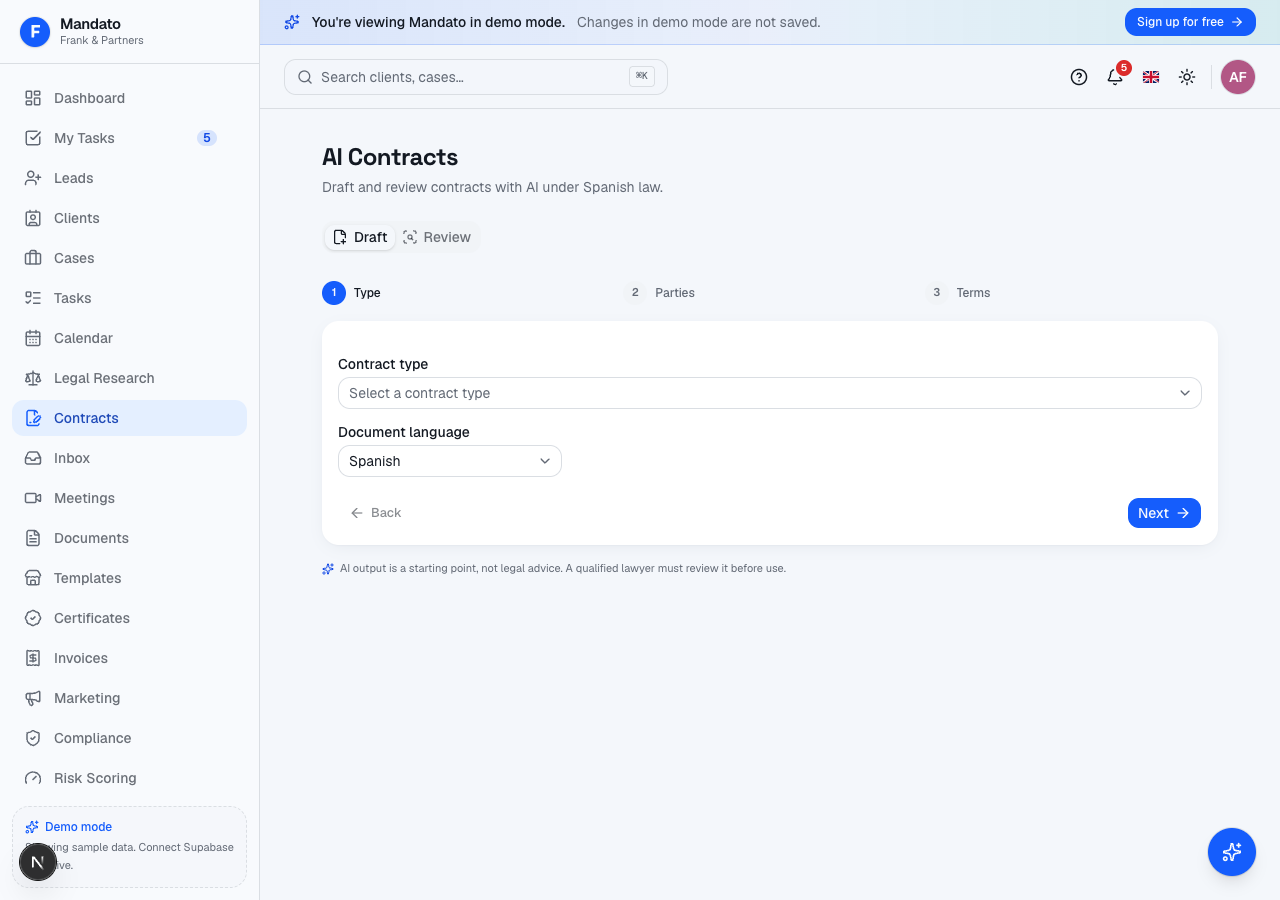
Open Contracts in the sidebar. There are two tabs:
- Draft — a three-step wizard: pick the contract type (lease, sale, services, NDA, employment, company, loan…), enter the parties, then the terms (object, price, duration, jurisdiction, special clauses). Click Generate contract and Mandato drafts the full text in Spanish. Use Copy, Download or New draft.
- Review — paste a contract or Upload a
.txt/.mdfile, optionally set the contract type and your perspective (buyer / seller / lender), then click Analyse. You get a clause-by-clause risk assessment, red flags, key obligations and suggested edits.
Legal research (CENDOJ)
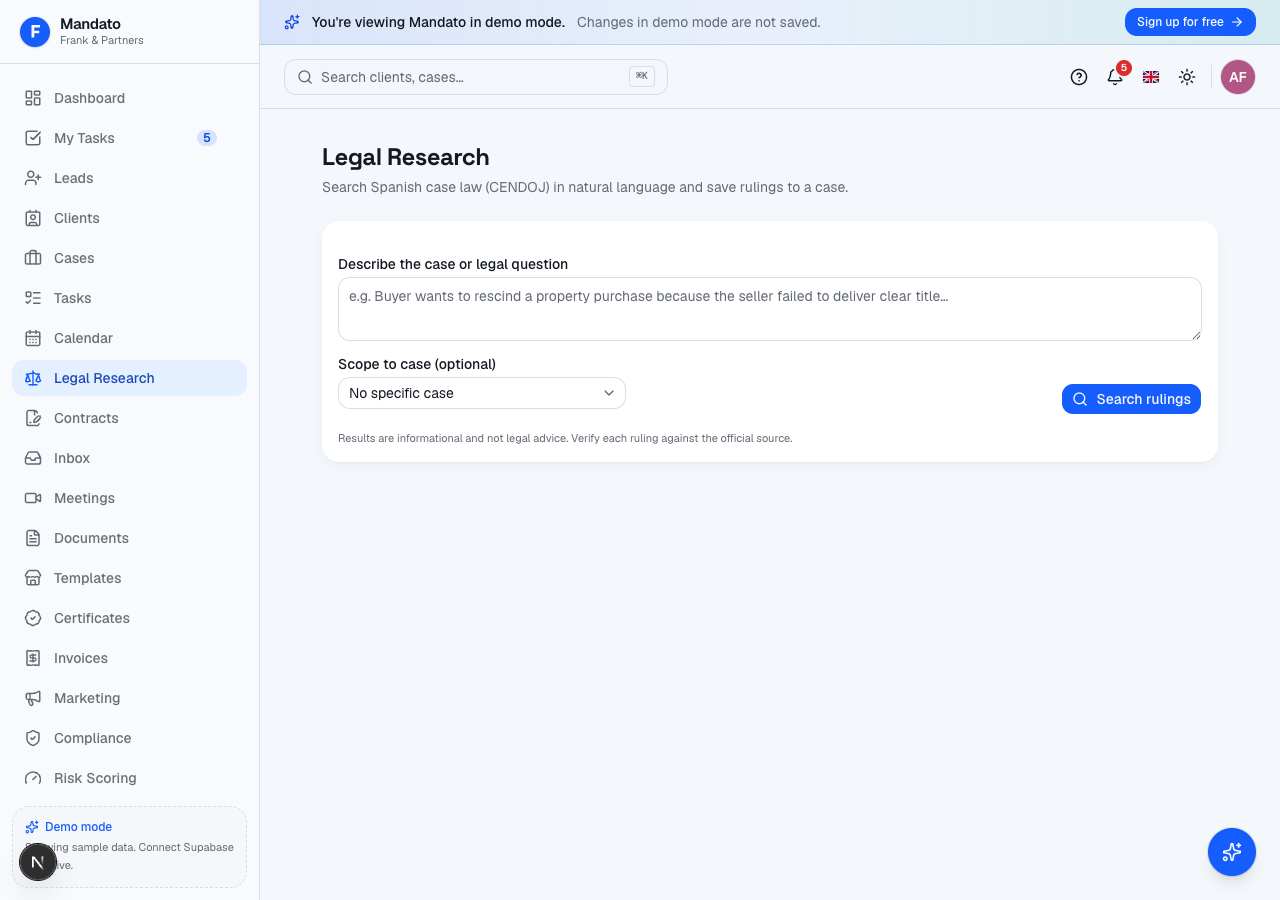
Open Legal Research, describe the case or legal question in plain language, optionally scope it to a case, and click Search rulings. Mandato searches Spanish court records (CENDOJ), writes a short AI synthesis, and lists rulings ranked by relevance (0–100%) with their ECLI, court and date. Click Save ruling to attach a relevant judgment to the case.
⚖️ AI synthesis supplements — it does not replace — your own legal research.
Property Purchase Copilot
On a property purchase or sale, the Property Purchase Copilot appears inside the case with five tabs:
- Overview — Generate overview synthesises the parties, property, key dates and flagged risks from the case file.
- Nota Simple — paste the Nota Simple text and Analyse it: owners and shares, charges and liens, urbanism restrictions, red flags, and any discrepancies against Catastro.
- Due Diligence — a conveyancing checklist you can Generate and Top up.
- Risk — a 0–100 title-and-transaction risk score by category.
- Tax & Costs — estimates transfer tax (ITP/AJD), registration and notary costs.
Voice notes
On a case, open Voice notes, click Record and dictate (or paste a transcript), then Process with AI. Mandato writes up structured meeting notes, creates up to ten tasks from the action items, logs a billable time entry, and drafts a follow-up email you can copy and send.
10. Spanish Integrations
Mandato connects to the Spanish systems law firms use every day, so you don't have to leave the app to check official records. Most of these tools appear as widgets inside the relevant case (property, company, immigration or litigation); BOE and Compliance have their own sections in the sidebar.
When your firm hasn't added credentials for a service yet, these tools still work with sample data so you can see how they look.
BOE / BORME alerts
The BOE Alerts section watches the official gazettes (BOE / BORME) for mentions of your clients' companies.
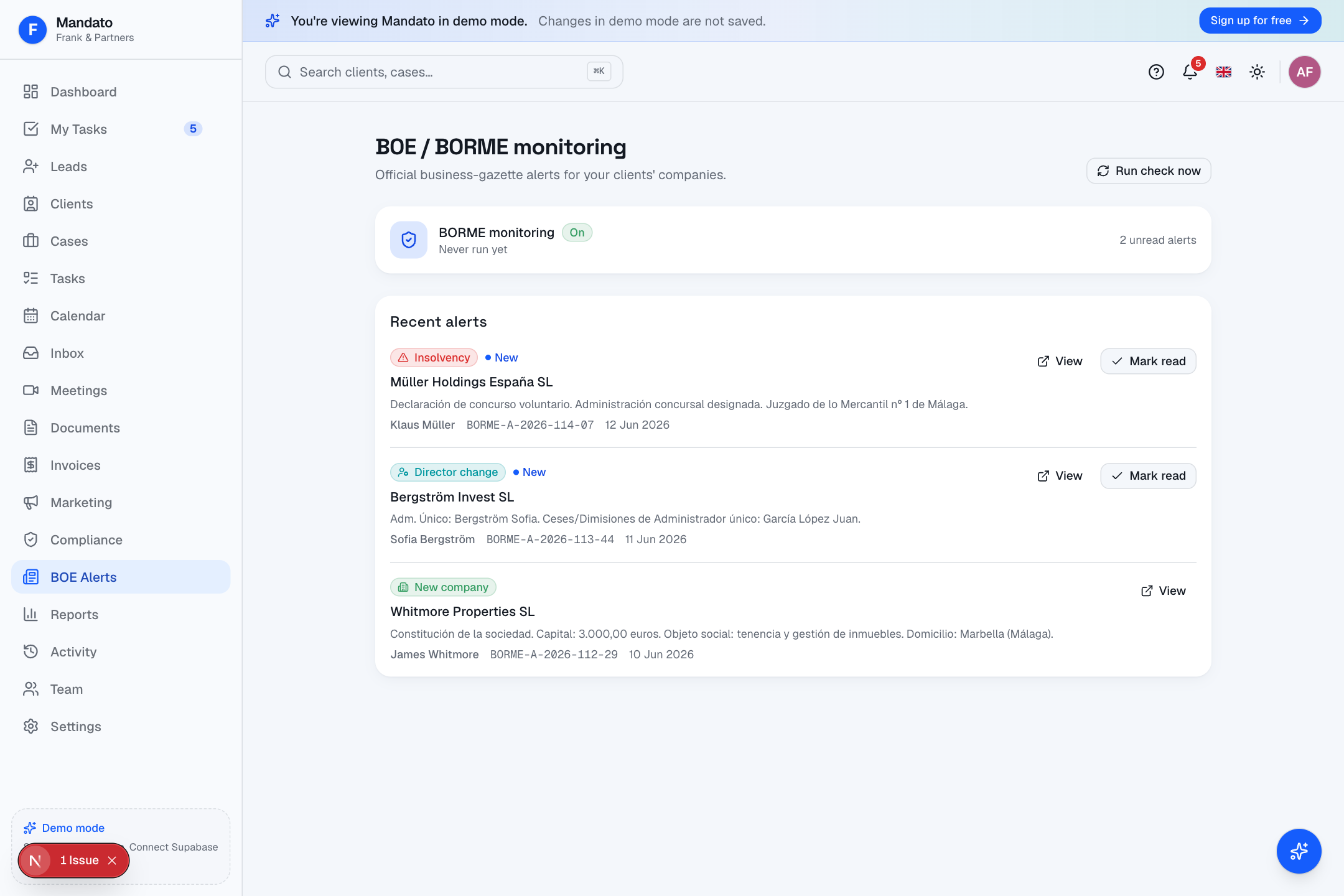
You'll get alerts for incorporations, director changes, insolvencies and mergers, each linking to the official publication. Click Run check now for an immediate scan, Mark read once you've dealt with an alert, and use Run AI impact analysis to have Claude assess which of your active cases a publication affects — then Notify affected clients with a ready draft.
Compliance screening (sanctions / PEP / AML)
The Compliance section screens your clients against sanctions and politically-exposed-person lists, and tracks regulatory deadlines.
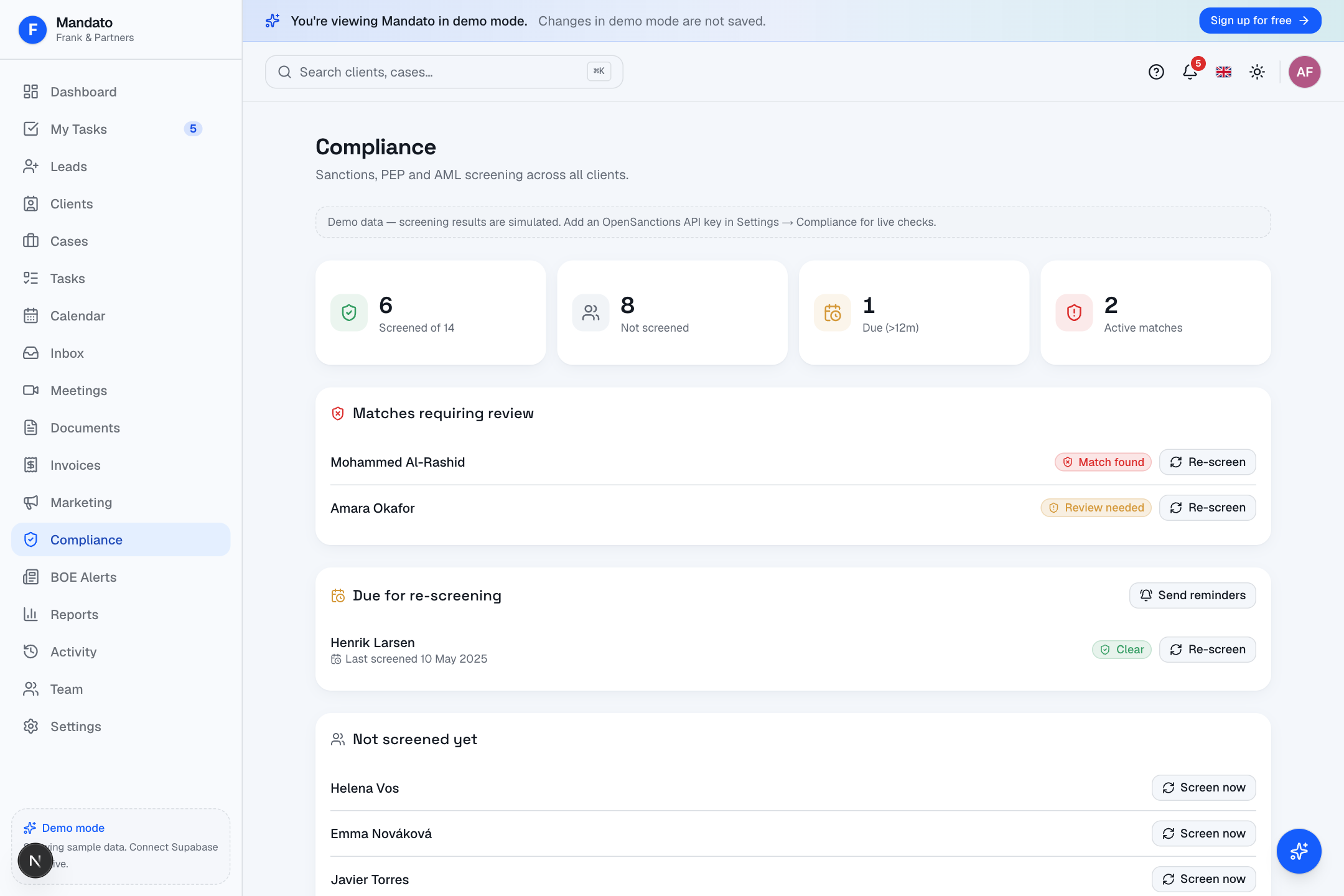
The AML screening tab shows how many clients are screened, which have matches requiring review, and which are due for re-screening. Use Screen now or Re-screen on any client, Send reminders for clients due a re-check, and Auto-create tasks from the compliance calendar. False positives can be dismissed with a reason.
Risk overview
The Risk section gives a firm-wide view of your client base by risk tier (low / medium / high), derived from screening and due-diligence results — a quick way to see where your enhanced-diligence clients are concentrated.
Property and registry tools (inside a case)
- Catastro — enter a cadastral reference or address and click Lookup Catastro to pull the surface area, cadastral value, year built, land use and a map.
- Nota Simple — Order a Land Registry extract, Mark received when it arrives, then paste the text and Parse with AI to surface owners, charges and red flags.
- NIE Tracker — track a residency application through Applied → Appointment booked → Attended → NIE received, with a document checklist, Book appointment and Send reminder actions.
- Registro Mercantil — track company name reservation and registration (deed → filed → inscribed → CIF), with quick links to reserve and search RMC.
- AEAT NIF / CIF validation — click Validate on a client to check the tax ID, or Validate all tax IDs in bulk.
- Tax filings (SII) — record issued and received VAT invoices and Export XML for the quarter. Tracking only — Mandato never files your taxes; SII/VAT compliance stays in your accounting tool.
Court tracking & LexNET filings
On litigation cases, the Court tools let you record the court, autos number, judge and status, add a timeline of events (filed, served, hearing, ruling, appeal), and track LexNET filings against the procedural deadline each answers. Next hearings sync to your Calendar. A quick link opens the official Sede Judicial.
Legal research & regulatory alerts
See Legal Research for CENDOJ jurisprudence search, and BOE Alerts above for regulatory monitoring with AI impact analysis.
11. Digital Certificates
Spanish firms rely on digital certificates (FNMT, DNIe) to act for clients online. The Certificates vault keeps them organised and warns you before they expire.
Open Certificates in the sidebar and click Add certificate:
- Choose the client the certificate belongs to.
- Upload the
.p12/.pfxfile and click Read details — Mandato auto-parses the X.509 metadata (issuer, serial number, valid-from and valid-to dates and the suggested type). If the file is password-protected, a password field appears. - Confirm the name, type (FNMT Persona, DNIe…), issuer and purpose, then Save certificate.
The list shows each certificate's client, type, expiry and status (Active / Expiring / Expired), with search and filters and a CSV export. Open any certificate to see its full metadata and its usage log — an audit trail of each time it was used. Mandato sends renewal reminders before a certificate expires so you're never caught out mid-filing.
🔐 Only directors, lawyers and admins can download a certificate file.
12. Powers of Attorney
Notarial powers (poderes) are tracked on the client record, in the Powers of Attorney panel on the Overview tab. A badge shows how many are expiring or expired.
- Grant — click Grant, choose the type (general, specific, property or company), optionally link a case, and record granted by, granted to, the signed date, an optional expiry date, the notary and the scope. Click Grant to save.
- Track — each power shows a status pill (Active / Expired / Revoked) and an Expiring soon flag within 90 days of expiry.
- Revoke — click Revoke on an active power, give a reason, and Confirm revoke. The revocation records who did it and when, audit-tracked per Ley 10/2010.
You'll also be reminded as a power approaches its expiry date.
13. Leads & Intake
Leads
Leads are prospective clients who haven't signed yet.
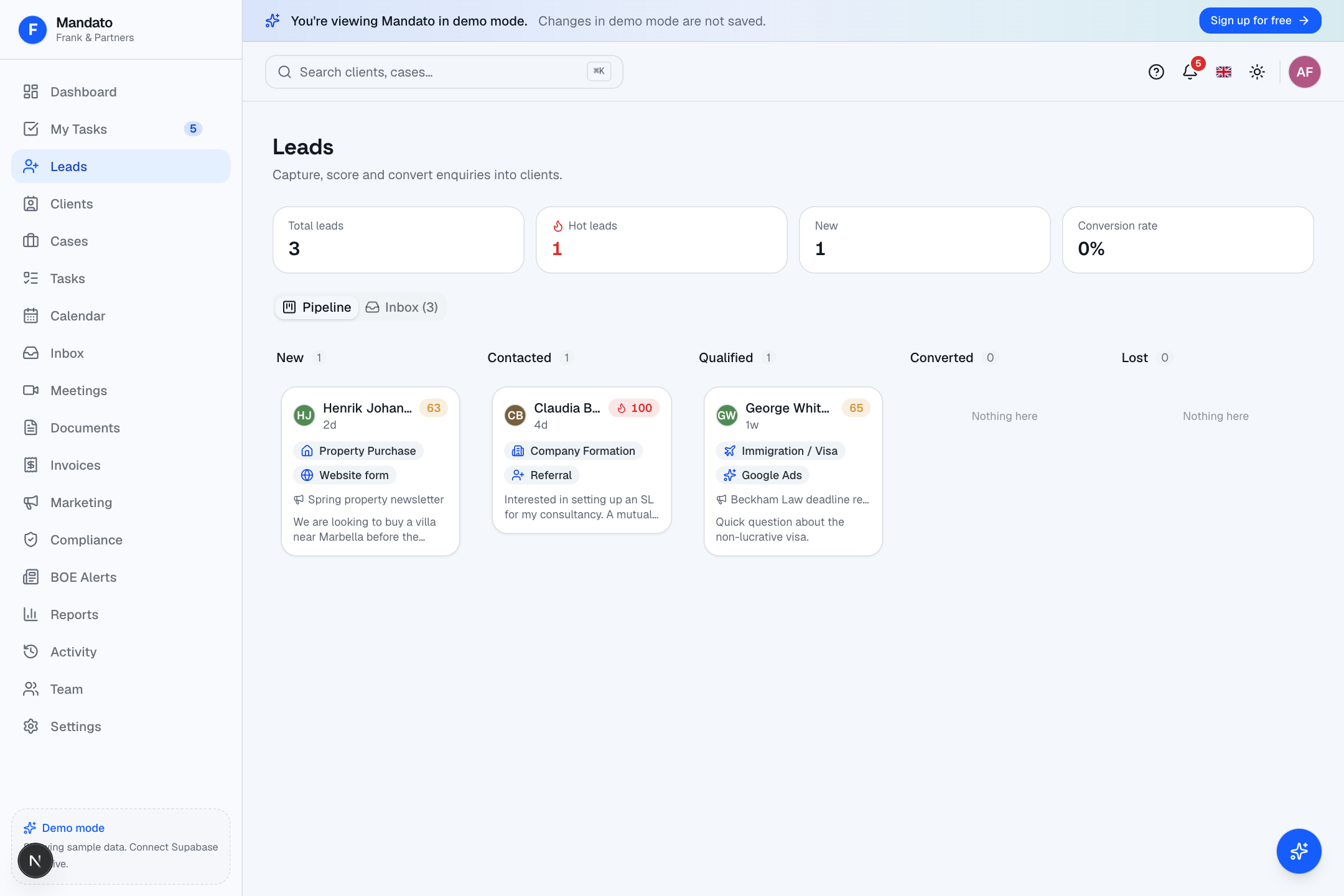
The top cards show total leads, hot leads, new leads and your conversion rate. Work leads in two views:
- Pipeline — a Kanban board (New → Contacted → Proposal → Negotiating → Closed). Drag a lead between columns as it progresses.
- Inbox — the same leads as a list.
Click a lead to open its detail: contact info, the original enquiry, and a lead score (0–100) that explains itself (e.g. contact info provided +10, specified a service +15). Set the status, source, service type and campaign, then click Convert to turn the lead into a client (and, optionally, a first case) — their details carry straight over.
Intake forms
Build a public enquiry form for your website in Settings → Intake Forms: add fields, set an accent colour, and copy the shareable link or embed it on your site. Submissions land in Leads automatically and your team is notified. (See the Admin Guide for the form builder.)
14. Marketing
The Marketing section helps you stay in touch with clients at scale.
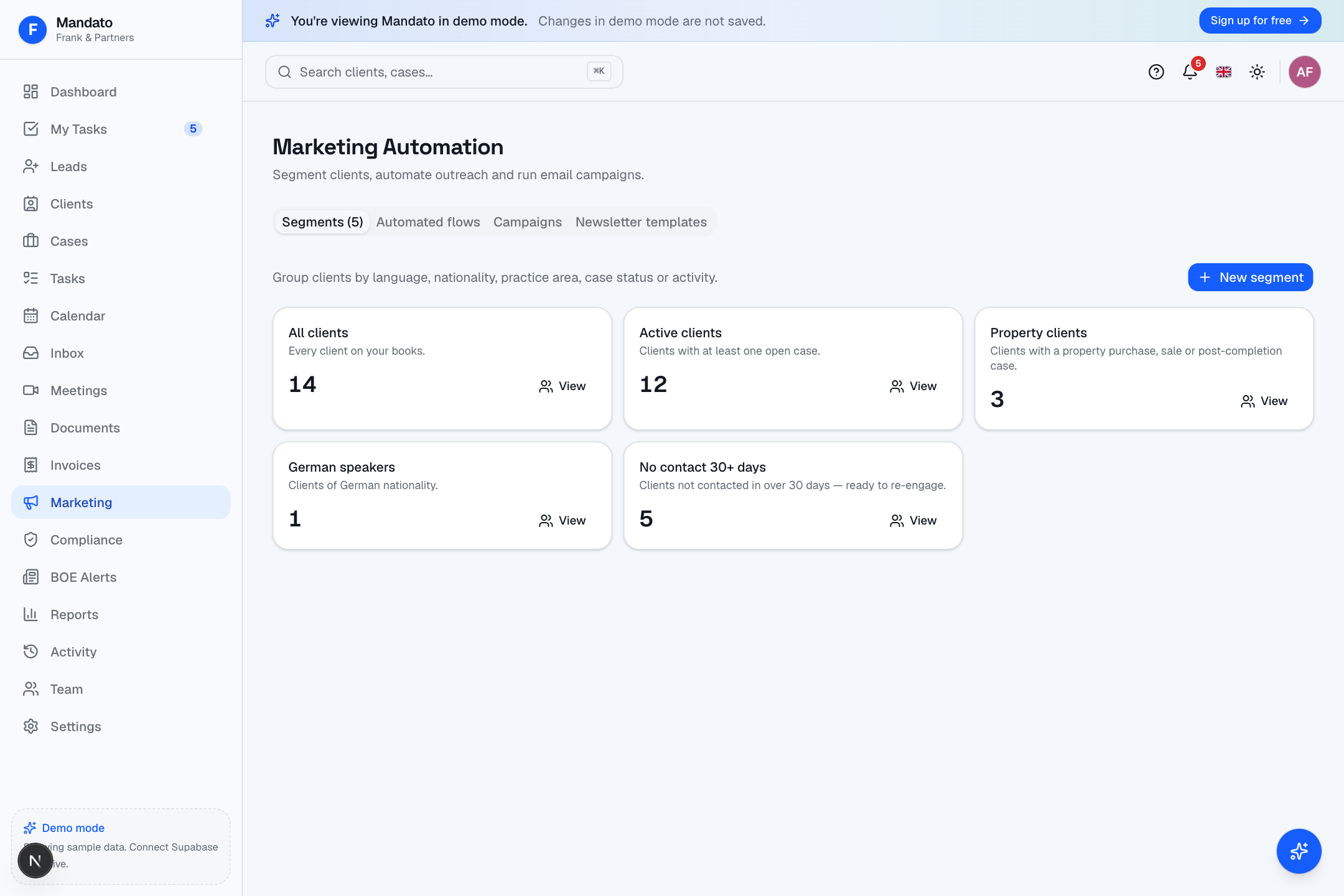
It has four tabs:
- Segments — define reusable audiences by language, nationality, practice area, case status or how recently you've been in contact. Click + New, set the filters, and a live count shows how many clients match. Open Members to see who's in a segment.
- Flows — automated emails triggered by events: birthday greetings,
re-engagement for quiet clients, and new-client welcomes. Preview
or Edit each flow's subject and body (merge fields like
{{client_first_name}}are supported), and switch it On / Off. - Campaigns — a one-off email to a segment. Write the name, subject and body, pick the segment and language, choose Send now or Later, and send. Past campaigns show open and click rates.
- Templates — pre-designed newsletter layouts you can edit and send to a segment.
📣 Marketing email goes out through Resend when your firm has connected it (otherwise sends are simulated for preview). Referrals are tracked too — see Settings → Referral Program in the Admin Guide.
15. Reports & Analytics
Reports
The Reports section gathers your firm's key numbers in one place.
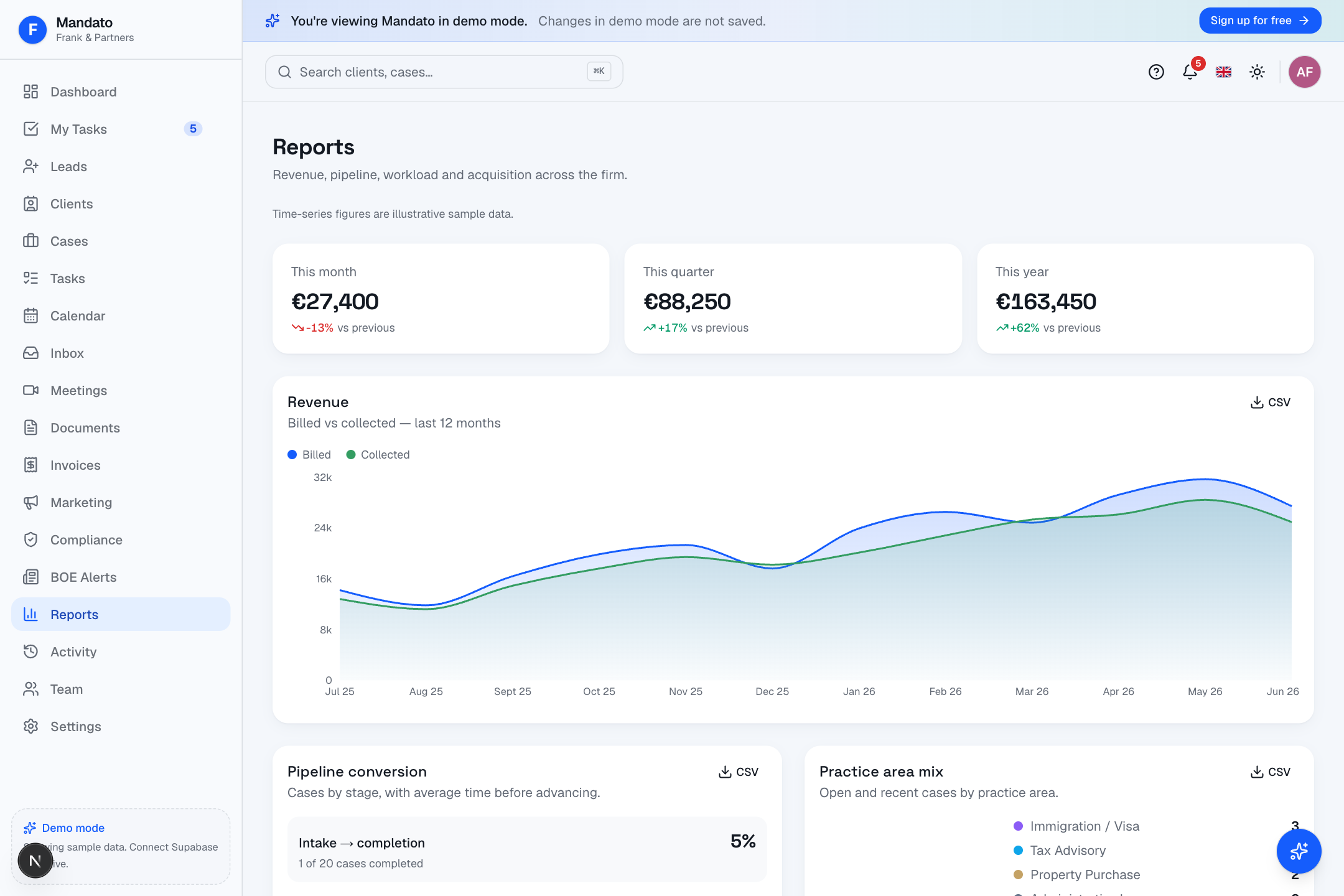
You'll find:
- Revenue — billed and collected by month, with this-month / quarter / year KPI cards and trend arrows (with a CSV export).
- Pipeline conversion — your funnel and average days per stage.
- Practice-area mix — a donut of cases by area.
- Team workload — cases and tasks per person.
- Client acquisition — new clients by month and by source.
- Expense summary — totals, category breakdown and monthly trend.
- Client satisfaction (NPS) — overall score, promoter / passive / detractor split, a per-lawyer breakdown and recent comments.
Analytics
The Analytics section is the deeper, benchmarked view. Filter by date range and lawyer, then compare your firm to industry standards:
- Headline KPIs — revenue with year-on-year growth, average case duration vs benchmark, utilization rate, and CLV:CAC ratio.
- Revenue per lawyer and per practice area, case duration by area, utilization by lawyer, and seasonal patterns.
- A Print button produces a PDF you can share.
Satisfaction insights
The Satisfaction section focuses on client feedback (NPS / CSAT): the trend over time, the promoter/passive/detractor split, a per-lawyer and per-practice- area breakdown, recent comments, and AI suggestions for concrete improvements. Surveys are sent automatically when a case closes (configurable in Settings) and answered on a public, no-login page.
16. Client Portal
Your clients get their own private, branded Client Portal — a simple website where they can follow their case, read messages, sign documents and pay invoices.
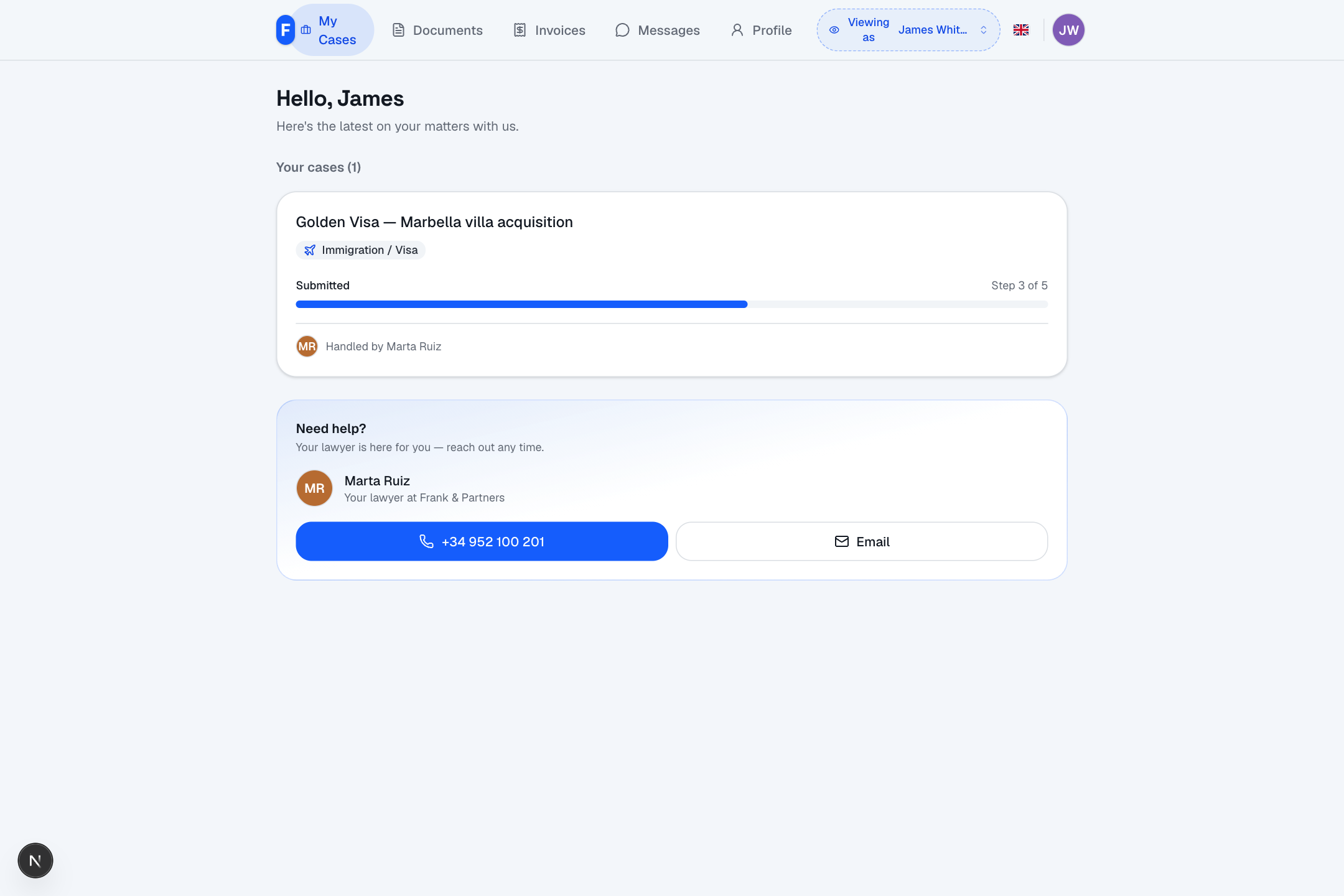
From the client's point of view, the portal shows:
- My Cases — each case with a clear progress bar (e.g. "Step 3 of 5") and who's handling it.
- Documents — anything waiting for their signature, or ready to download (and they can upload documents back to you).
- Invoices — what they owe, with a pay-online button, plus their trust balance.
- Messages — their conversation with your firm.
- Profile — their own contact details, which they can keep up to date.
- A "Need help?" card with their lawyer's direct contact.
The portal carries your firm's logo and colours (set in Settings → Branding) and speaks the client's language. Clients see only what they should — never internal notes, time entries or court filings.
Giving a client access
You share portal access from the client's record. Access is link-based and can be revoked at any time. (In the demo, the "Viewing as" switch at the top lets you preview the portal as different sample clients.)
17. Settings
Settings is where you and your administrators configure the firm. It's one long page divided into clearly labelled cards, plus a few dedicated sub-pages.
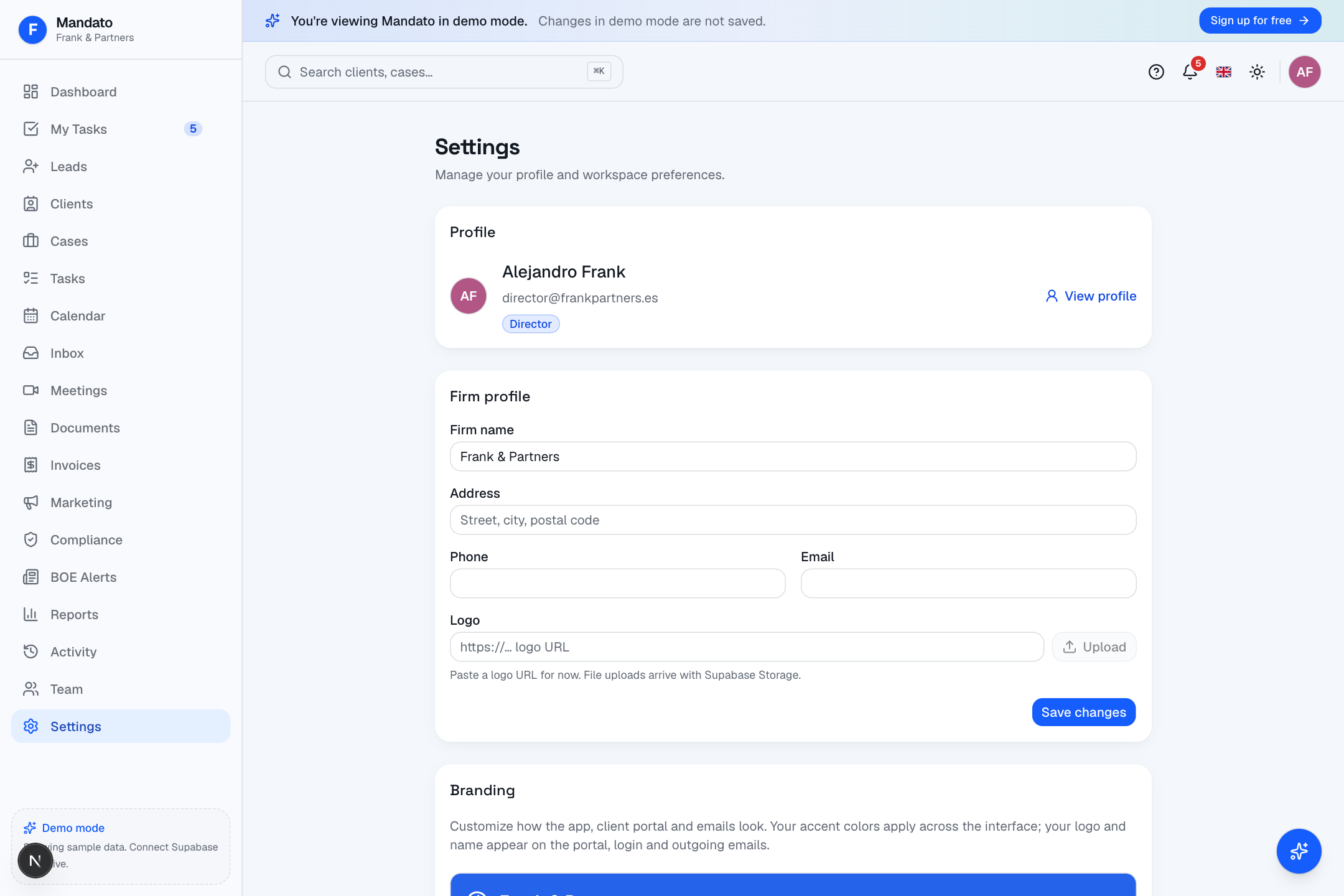
The main things you'll find here:
- Profile — your own name, email and role.
- Firm Profile — firm name, address, phone, email and website.
- Branding — your logo, colours and email footer (these flow through to the portal, login page and emails).
- Billing & Subscription — your Mandato plan and payment method.
- Team & Roles — invite colleagues and set their role. Mandato has four roles: director, lawyer, paralegal and client, each seeing only what they should.
- Practice Areas and Playbooks — turn practice areas on or off and edit the stage / task checklists for each.
- Integrations — connect Email, Calendar, WhatsApp, Holded, Stripe, Claude AI, meeting recording and compliance screening.
- Intake Forms, Import Data, Time Tracking, Expense Categories, Client Satisfaction (NPS), Smart Reminders, Referral Program, Weekly Digest, Notifications, Backups & Data Export, and Appearance & Language (light / dark mode, EN / ES).
🔐 Who can change what? Only directors can change firm-wide settings like branding, team and integrations. Lawyers and paralegals can still manage their own profile and preferences. The full administrator walkthrough lives in the Admin Guide.
18. Keyboard Shortcuts
Mandato is faster with the keyboard. Press ? anywhere to open the shortcuts help.
| Shortcut | Action |
|---|---|
| ⌘ K / Ctrl K | Open global search (clients, cases, tasks, documents) |
| ? | Show the keyboard-shortcuts help |
| G then D | Go to Dashboard |
| G then C | Go to Clients |
| G then S | Go to Cases |
| G then T | Go to Tasks |
| G then M | Go to My Tasks |
| G then I | Go to the Inbox |
| N then C | New client |
| N then S | New case |
| N then T | New task |
| Esc | Close a dialog or panel |
The exact list is always available in-app via the ? key, and little ? tips sit next to many settings to explain what they do.
19. Troubleshooting
I can't log in. Make sure you're using the same Google account your firm invited. If your invitation has expired (they last 14 days), ask a director to re-send it from Settings → Team & Roles.
An AI feature shows a "Demo" badge / canned text. That's expected when your firm hasn't added a Claude (Anthropic) API key yet. A director can add one in Settings → Integrations → Claude AI. See API Keys Setup.
Address autocomplete isn't working. Google Maps is a deploy-level key set by your administrator. If it's missing, address fields are plain text — everything still works, just without suggestions.
WhatsApp messages aren't arriving. The firm's WhatsApp number, token and webhook must be configured. Ask your administrator to check Settings → Integrations → WhatsApp and the API Keys Setup guide.
A Spanish-registry tool shows sample data. Catastro, BOE and the registries run on demo data until your firm enables the live connection. The screens and flow are identical either way.
An invoice shows "Synced from Holded" and I can't edit it. Holded is the source of truth for that invoice — edit it in Holded and it re-syncs. Mandato never overwrites your accounting tool.
Time isn't adding up on a case. Check that Time Tracking is enabled (Settings → Time Tracking) and that entries are logged against tasks on that case. The Billing tab totals only count tracked time and billable expenses.
A client can't see something in their portal. Clients only see their own cases, documents, invoices and messages — never internal notes, time entries or court filings. That's by design.
Something looks wrong / I hit an error. Reload the page first. If it persists, note what you were doing and contact your firm administrator, who can check the Activity log and, if needed, reach Mandato support.
Need more help? Open the Help Center inside Mandato (the ? icon), ask the built-in Ask Mandato assistant, or contact your firm administrator.